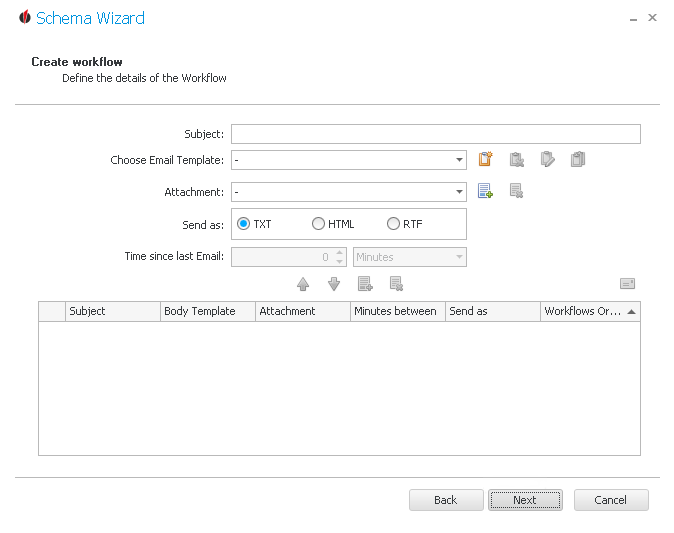
Enter the subject for the e-mail. You can choose an e-mail template. If you you haven't created one yet, click on the  symbol. In the dialog you can create a template like in the tab Reports.
In the Report Designer you can embed pictures either directly or by using an FTP server. We recommend the FTP option if you want to make sure that the pictures are displayed correctly with all of your recipients.
Once you've decided on a report you have the possibility to either delete ( ), edit (
 ) or copy (
 ) it with the help of the symbols on the right.
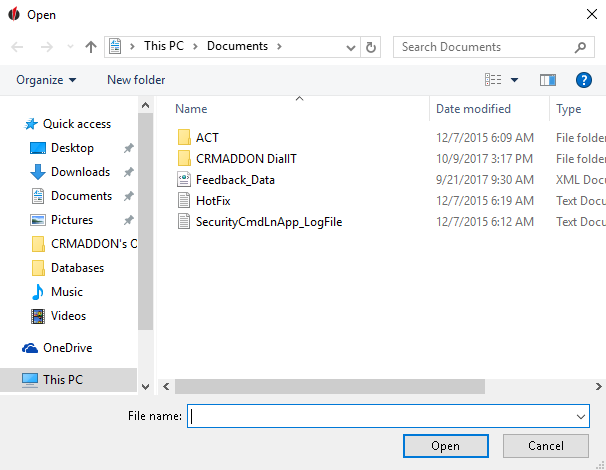
You can also attach a document to the e-mail. Open the Attachment dropdown list and choose one of the files. If you haven't added any files to the list you can do so by clicking on the  symbol. A dialog appears where you can select the desired document and then click on Open:
Now the file appears in the dropdown list and you can select it:
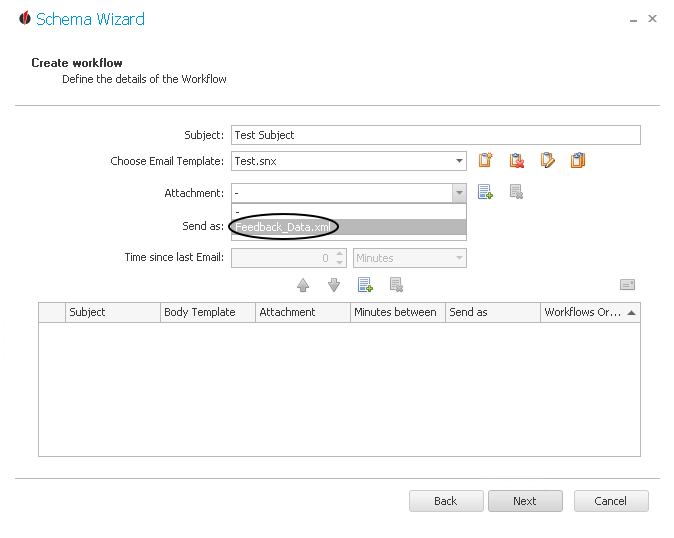
Once you have chosen a file you have the possibility to remove it again. Click on the  symbol.
After that you state in which file format the e-mail should be sent (.txt-format, .html-format, .rtf-format). Pictures can only be sent if you choose the .html-format.
Then click on the  symbol and the e-mail appears in the list below:
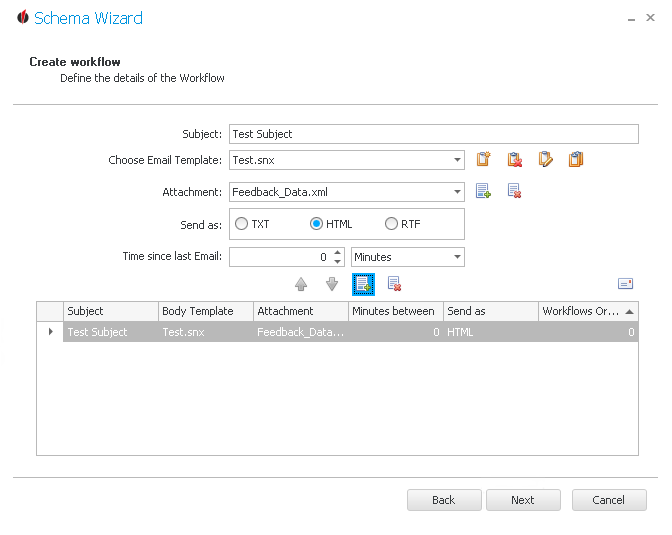
If you want to create a second e-mail instruction you change the settings above according to your wishes. Now you have the opportunity to enter the time since the last e-mail. First you choose the time unit, e.g. minutes,hours, days or weeks. Then you type in the number. Add your e-mail with the symbol. Once you have two or more instructions you can move them by using the arrow buttons 
 .
.
If several e-mails are sent in a short span of time they eventually land in the spam mailbox of the addressee. The reason for this is that the e-mail provider will classify you as spam depending on how many e-mails you send in a given time frame. With the time delay function you can avoid this spam classification.
If you want to remove an e-mail instruction you select it and then click on the symbol.
There is another symbol which enables you to send a test version of your workflow:
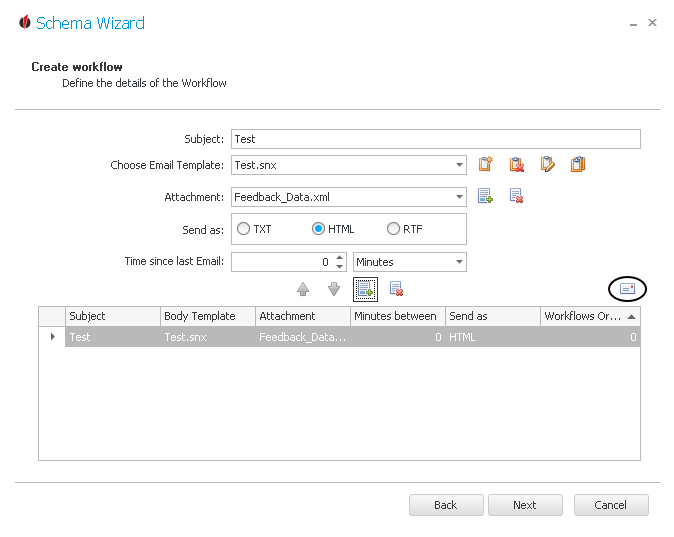
Before sending a business e-mail with OUTREACH|IT you should always create a test schema in advance that you send to yourself so that you can check if you set everything correctly. Conveniently you only have to get to this window for testing - there is no need to create a full schema.
Now click on the symbol. The following dialog should appear:
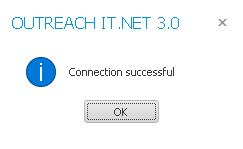
Click on OK. If an error message appears you should check your entries.
If you sent and checked the test e-mail successfully you can go on Next.
You will be forwarded to the Advanced Settings.