Download documents from an FTP server to import them to Act! using IMPORT|IT.
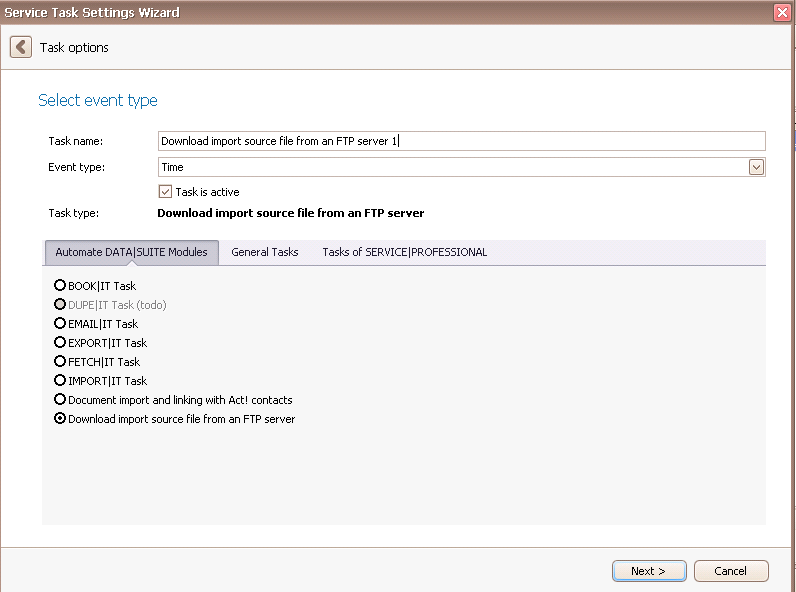
Once you have set the task type Download import source file from an FTP server you click on Next.
You will get to the schedule options. Continue reading in the Trigger Time / Trigger Task chapter to find out how to proceed.
Click on Next.
The following window will open:
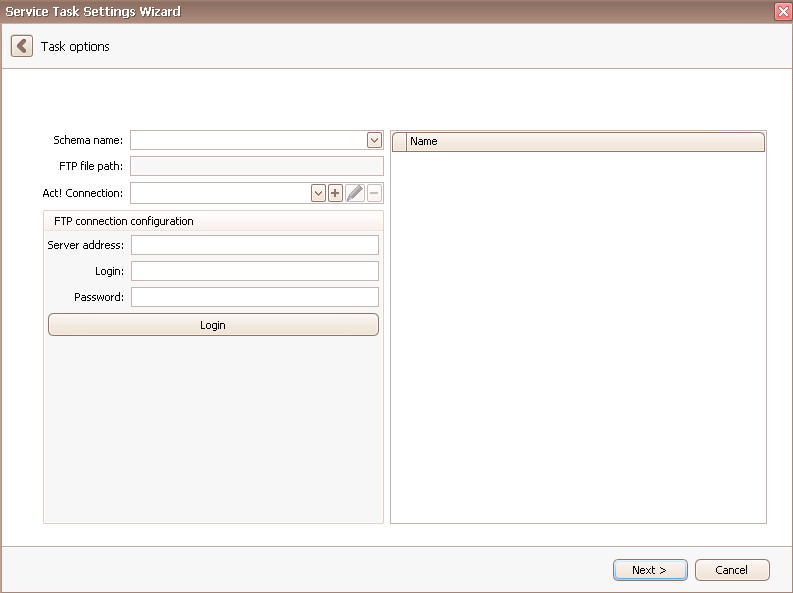
At first you choose an IMPORT|IT schema. Then you pick an Act! connection. You can read more about that in the chapter Connect DATA|SUITE with Act!.
Next, you enter the server address, your user name (login) and the password for your FTP server. If you do not know those ask the creator of the server. After that click on Login. On the right side you should see the folders of your FTP server. Choose the file/folder you want to import. It will be displayed on the left side under FTP file path.
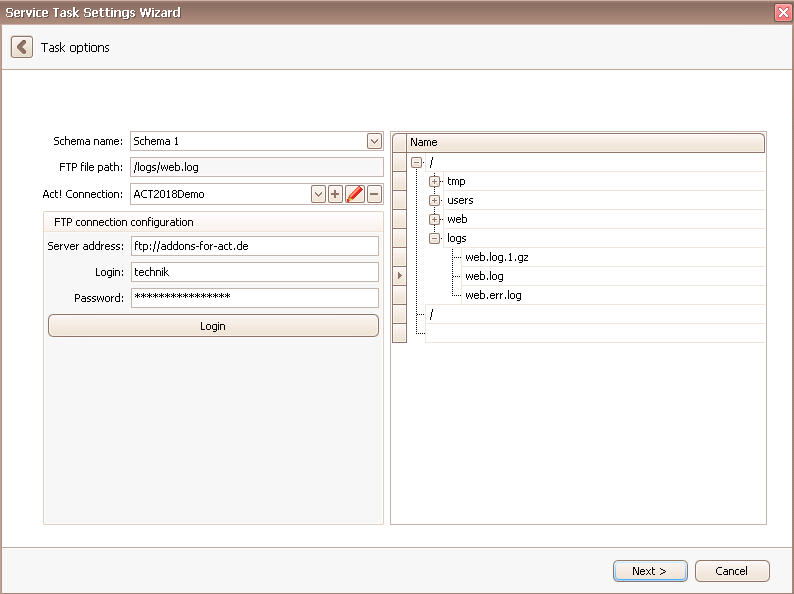
Now you go on Next.
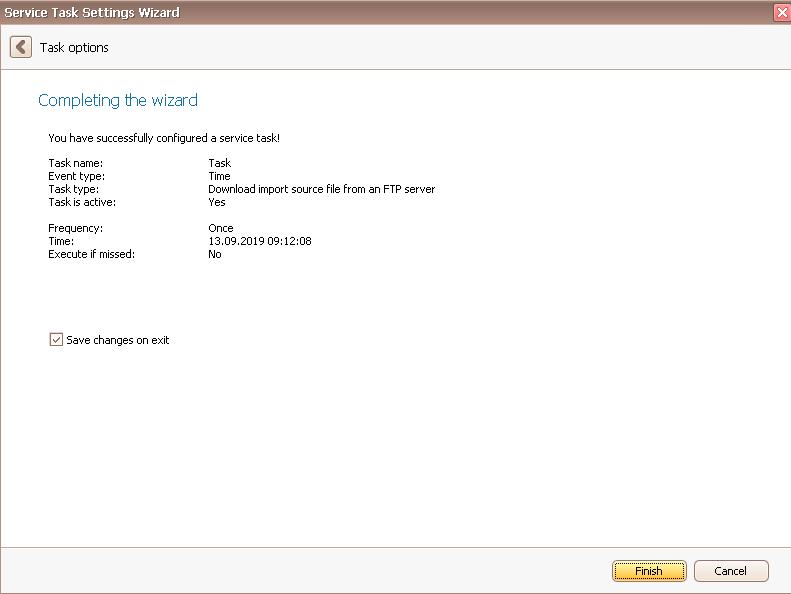
In the end you click on Finish. You created a task for downloading an import source file from an FTP server!

