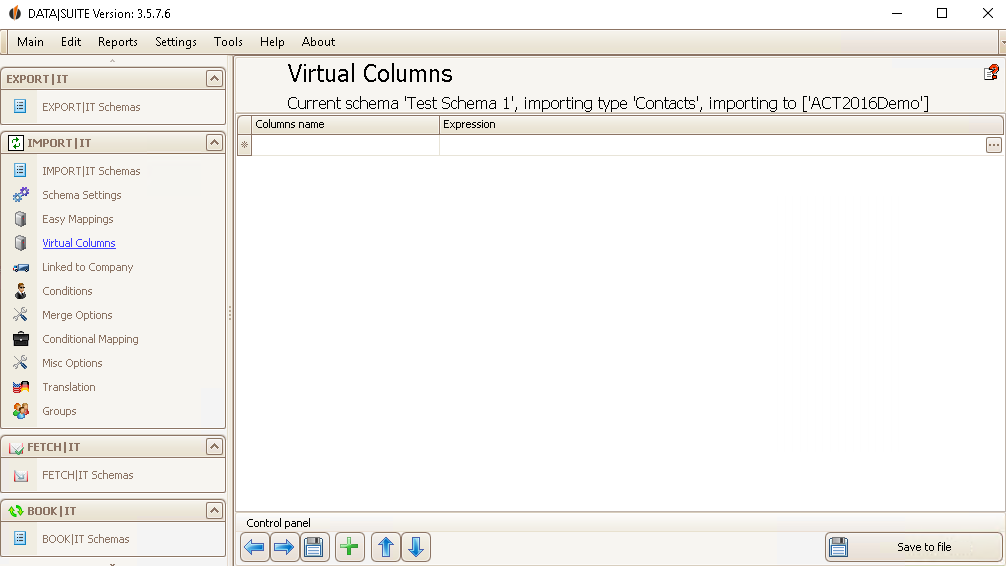
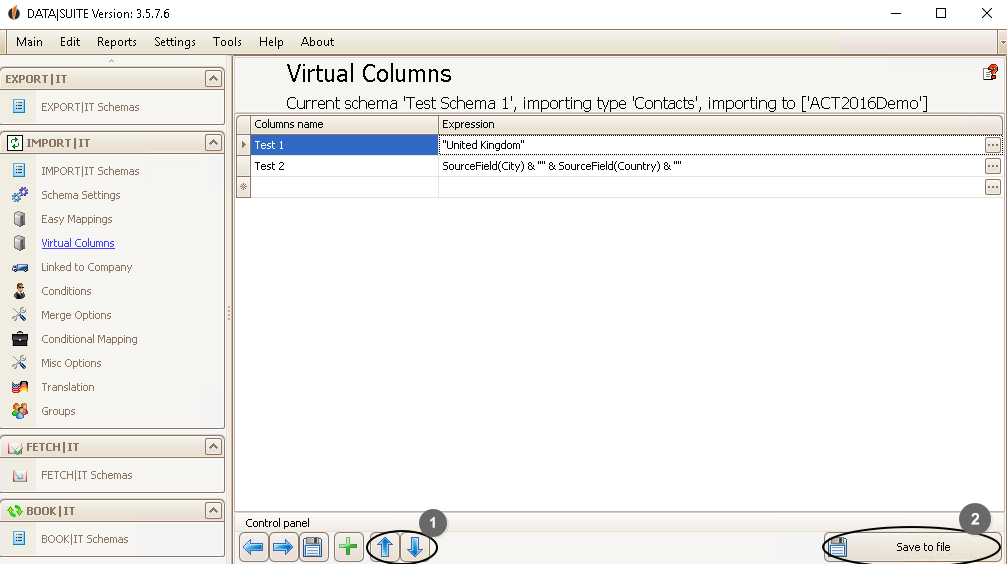
There are four options available. You can
•Constant Value: create a virtual field that always has the same value (e.g. United Kingdom) •Merge fields: create a virtual field out of two or more source fields •Translation: create a virtual field where the field name or the field value from the source field will be translated into a specific expression •Custom Expression: create a virtual field whose output value is determined by a function/script Virtual fields can be compiled from the source fields and then assigned to an Act! field as a new source field in Easy Mappings.
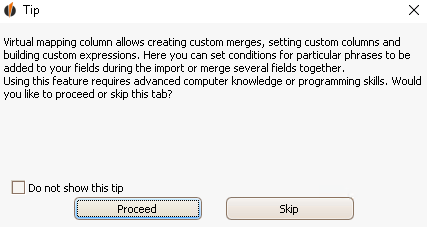
Maybe this window will appear in the beginning:
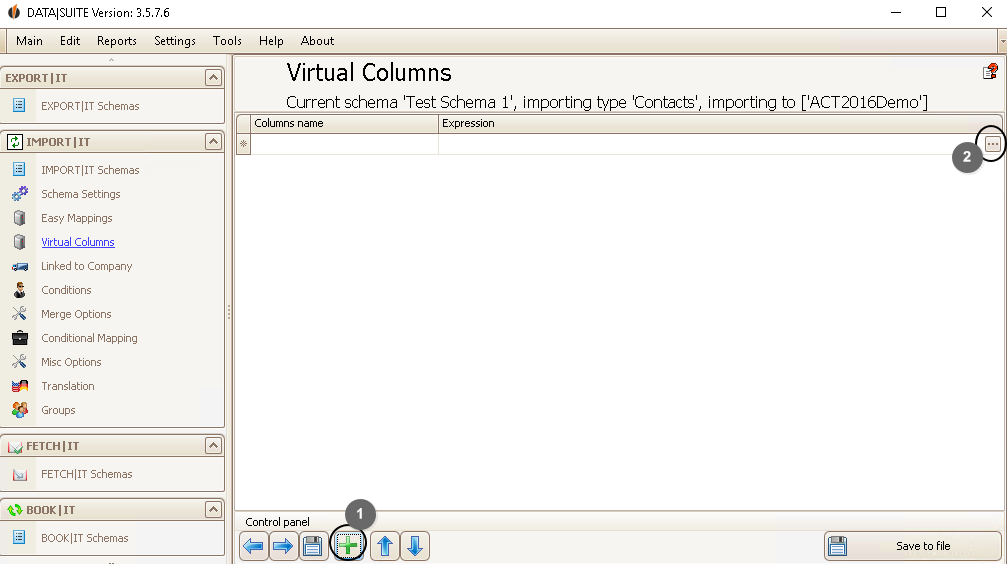
Tick Do not Show this tip and click on Proceed. To create a new virtual field either go on the green + (1) or click on the three dots at the end of a row (2).
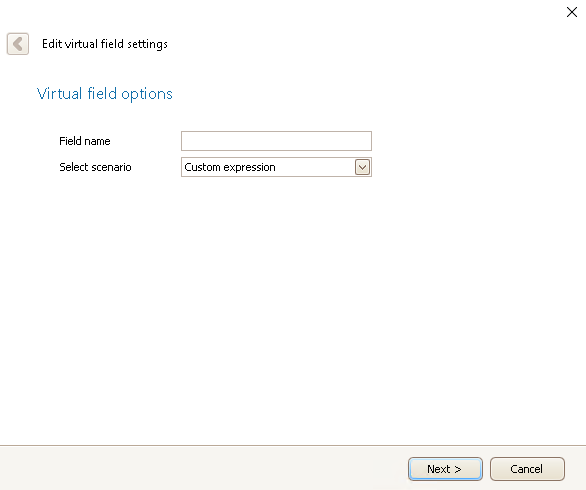
The following window will appear:
For Field name you type in the name of your new virtual field. Under Select Scenario you can choose one of the four previously mentioned options. Then you click on Next. How to create virtual fields with the specific options can be read about in the particular chapters.
After you have created some virtual fields you can move them around with the blue arrows (1) and delete them by selecting the row and pressing Delete on your keyboard.
There is the possibility to save the virtual fields you have created as a file. Click on Save to file (2). This is helpful if you have many data records that should be connected by a virtual field. You can import that file separately. This will speed up your import.
When you are done, click on the Save symbol. The next step is Linked to Company. |