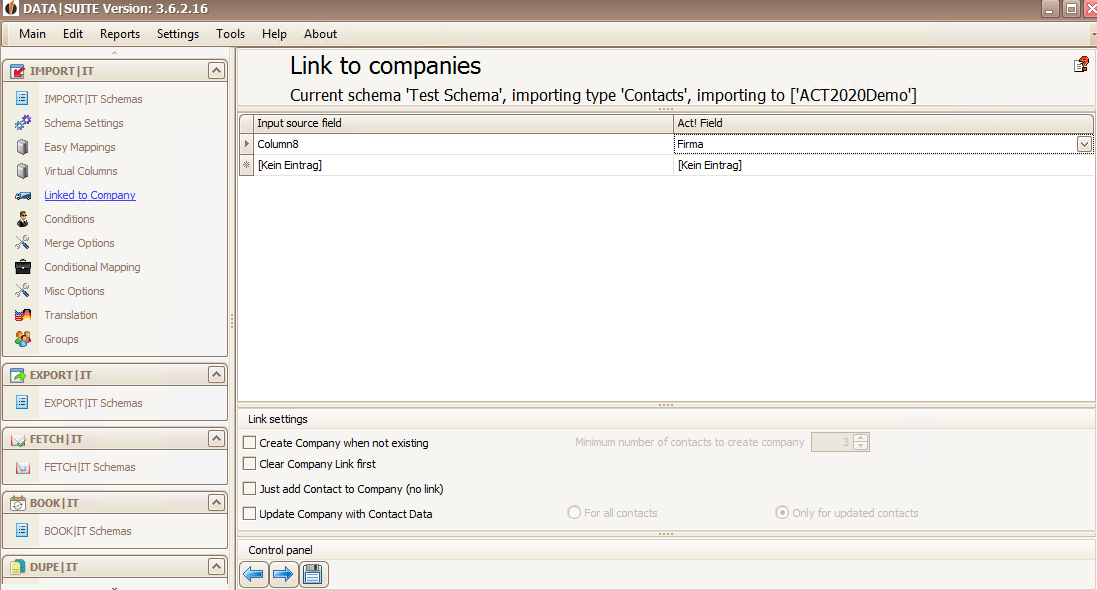
Here you can choose a field from your source file that will be linked with a company field. You can delete a row by selecting it and clicking on Delete on the keyboard.
If a contact you want to import works for a company that does not exist in your database yet then you can tick whether you want to create a new company in Act! or not. You can also set the number of contacts that are necessary for creating a company.
Whenever you import a contact that already exists but the company has changed you have the option to clear the company link first. That means that the previous company link will be removed so that the new link can be added. This way, in case the company did not change, the correct company link will still be there (it will be imported again, nevertheless).
There is also the possibility to just add the contact to the company without a link.
You are not only able to connect the contact record with the company so that the contact data will be updated once company data is changed, but you can also connect the company record with the contact so that the company data will always be updated when there are changes to the contact record (e.g. when importing a contact with a new address for this company). This setting is either available for all contacts or for contacts that have been updated by the import.
When you have set everything according to your wishes click on the Save Symbol.
The next step are the Conditions. |