You have certain histories in Act! that are assigned to a an opportunity or to a contact/company/group connected with this opportunity. You can connect the end date of the opportunity with the end date of the history that is about winning/losing this opportunity and by that you automatically close the opportunity after having created a history that covers this.
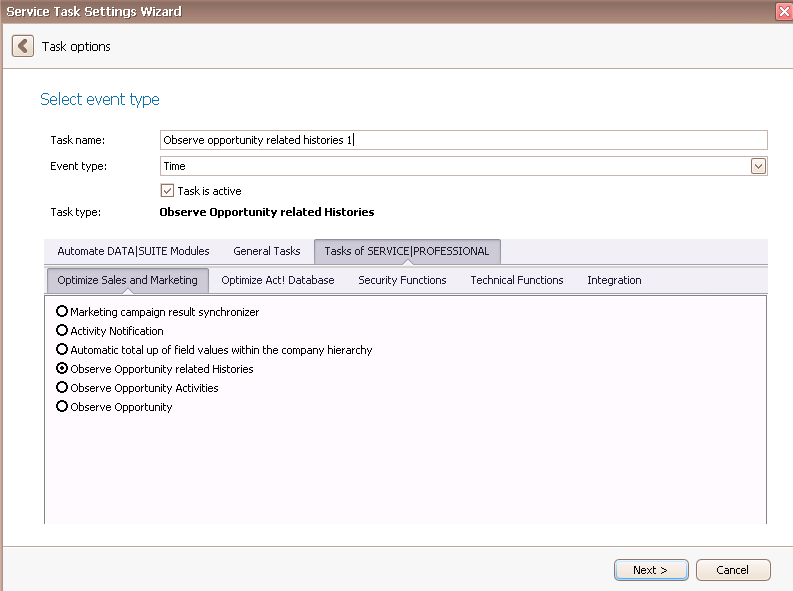
Once you have set the task type Observe opportunity related histories you click on Next.
You will get to the schedule options. Continue reading in the Trigger Time / Trigger Task chapter to find out how to proceed.
Click on Next.
The following window will open:
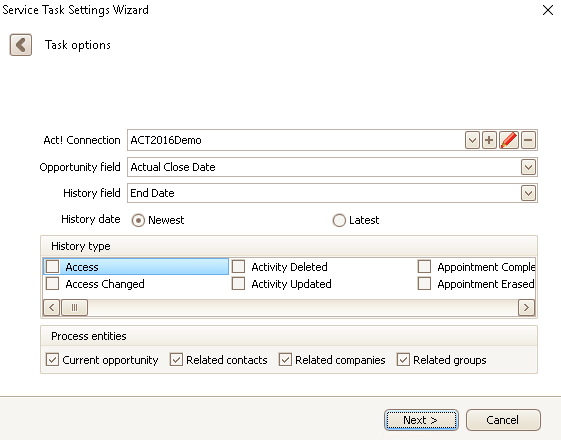
First you choose an Act! connection. You can read more about that in the chapter Connect DATA|SUITE with Act!.
Then you choose the opportunity field, End date, that should be connected with the particular history field.
You also decide whether the program looks at the oldest or the latest histories and what a history type, Opportunity won/lost, should be observed.
Another setting is observing only the histories belonging to the current opportunity or also observing the related contacts/companies/groups.
As long as there is no history that meets these criteria no field value will be copied, but as soon as the filter applies to one history that history's End date value will be copied into the End date field of the opportunity.
This feature, in a similar way, can also be used for other date fields of the opportunity, for example for dates of intermediate steps from client acquisition.
Now click on Next.
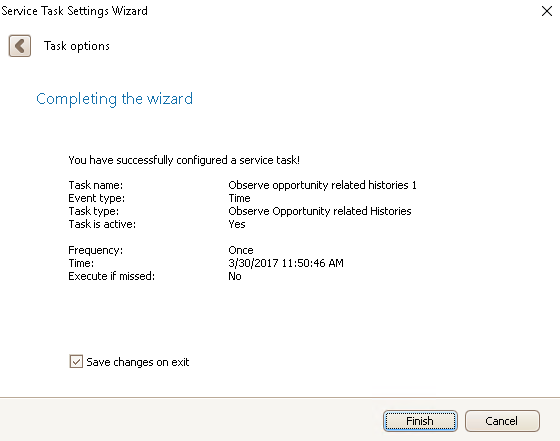
Now you click on Finish. You successfully created a task for observing opportunity related histories.

