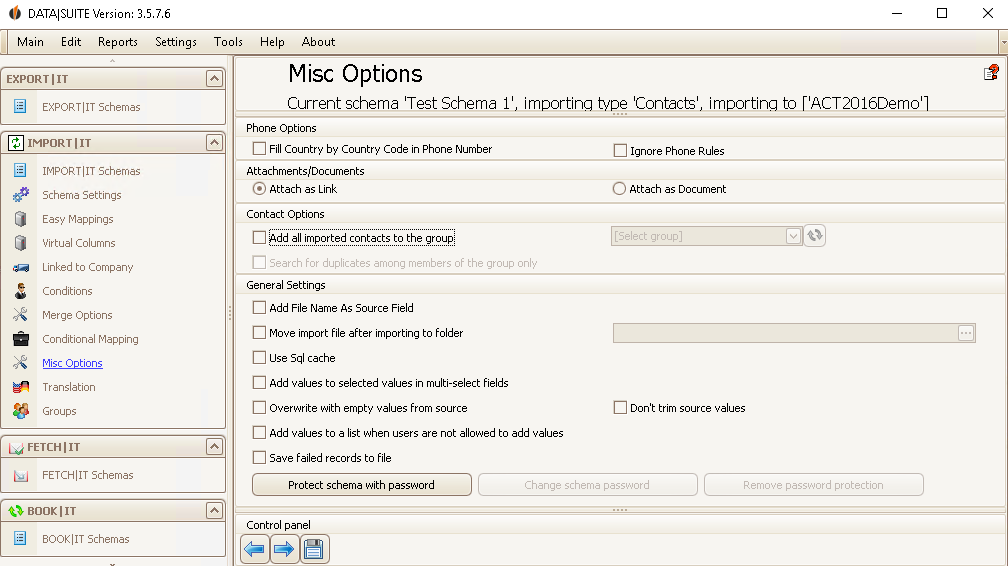
Phone Options
Here you can choose if the country is added automatically by analysing the Country code of the contact's phone number. Also you can ignore the phone rules you have set in the Standard Settings.
Attachments/Documents
You have the possibility to add the document itself to Act! during the import or to attach a link.
General Settings
If you have a file you can add its name as a source field. It is also possible to move a file to a folder of your choice after importing it. You can also use the SQL Cache to recognize already imported data records. Furthermore, you have the possibility to add values you import to the dropdown lists in Act! automatically. This only applies when a field allows multiple choice. You can also overwrite the Act! fields with empty fields from the source file. Another setting is that the source values aren't trimmed. When the user that runs the import doesn't have the rights to add values to certain fields in Act! you can also set that the values will be added to the fields and the dropdown lists despite that. Finally, you can decide whether or not failed records should be saved to a file.
Schema Password
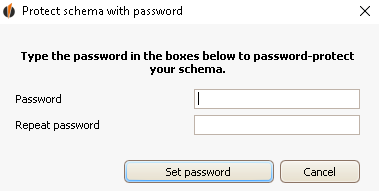
There is the opportunity to protect the import schema with a password. For that, click on Protect schema with password. The following window will appear:
Enter your desired password. This has to be at least four characters long. Then go on Set password.
You are able to click on the buttons Change schema password and Remove password protection now.
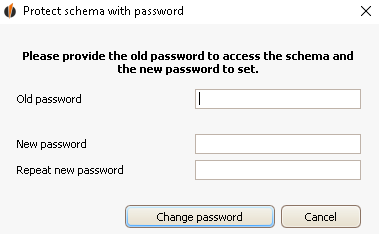
If you want to change the password you have to type in the old one first and then enter the new password twice. Then you click on Change password.
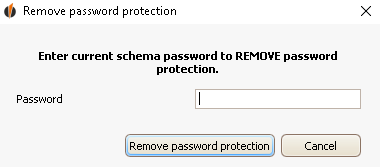
When you want to remove the password enter the old password first and then click on Remove password protection.
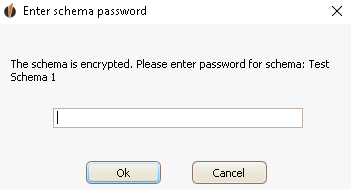
In order to edit your schema after creating a password you will have to enter it when trying to access the schema.
In the end you click on the Save symbol.
The next step is Translation. |