With this feature you automatically set a user function and team membership of your Act! contacts.
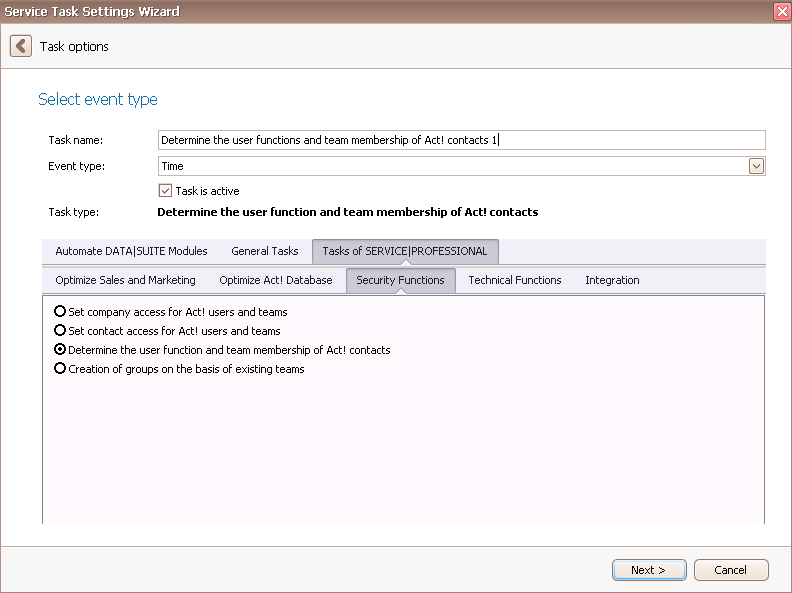
Once you have set the task type Determine the user function and team membership of Act! contacts you click on Next.
You will get to the schedule options. Continue reading in the Trigger Time / Trigger Task chapter to find out how to proceed.
Click on Next.
The following window will open:
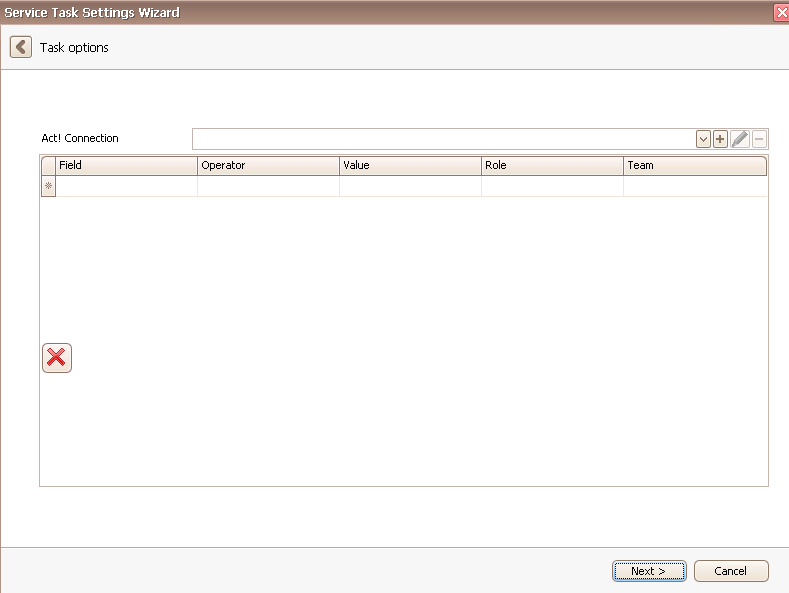
Firstly, you choose an Act! connection. You can read more about that in the chapter Connect DATA|SUITE with Act!.
Here you enter the conditions under which a contact is given a certain role or under which he becomes part of a certain team. You can set, for example, that when the title (Field) of a contact is equal to (Operator) Administrator (Value) the contact is given the Role Administrator, as well.
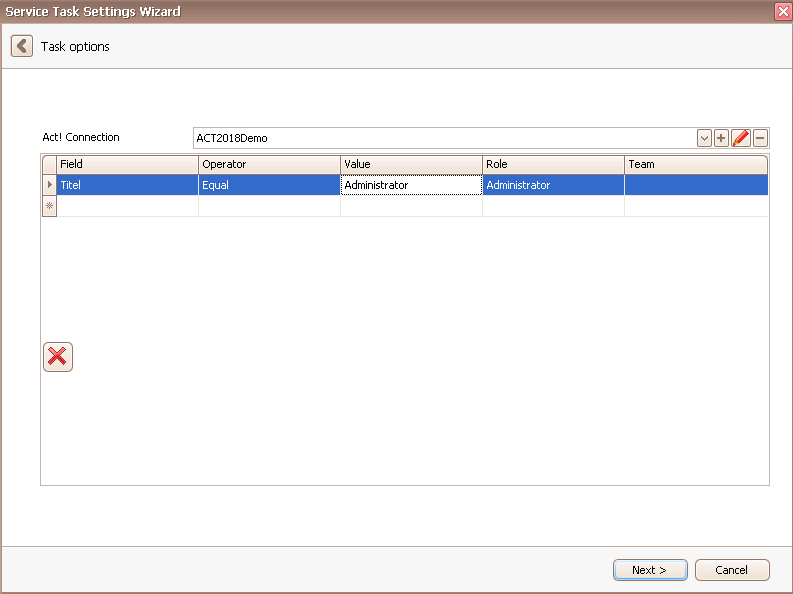
You have the possibility to delete some of the rows by selecting them and then clicking on the  symbol.
Once you set everything according to your wishes go on Next.
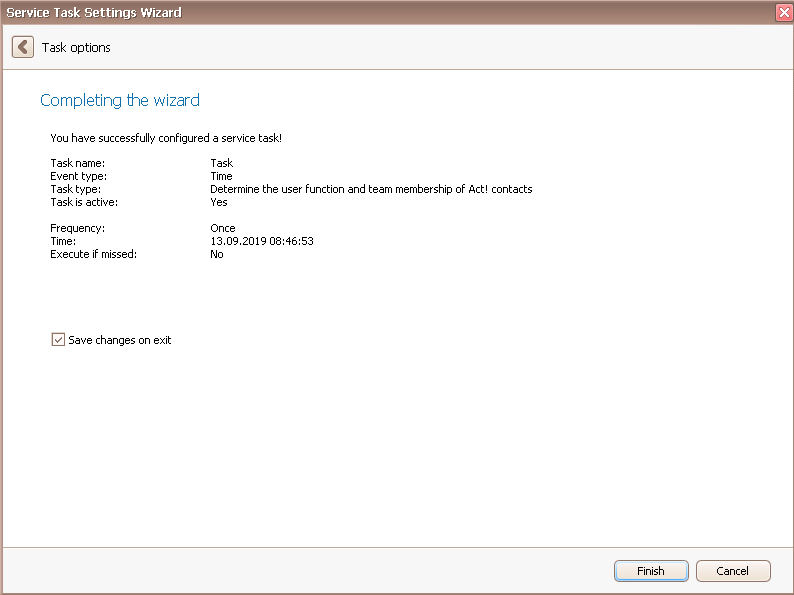
In the end you go on OK. You created a task to determine the user function and team membership of Act! contacts.

