If you want this, SERVICE|IT deletes a selection of histories for you.
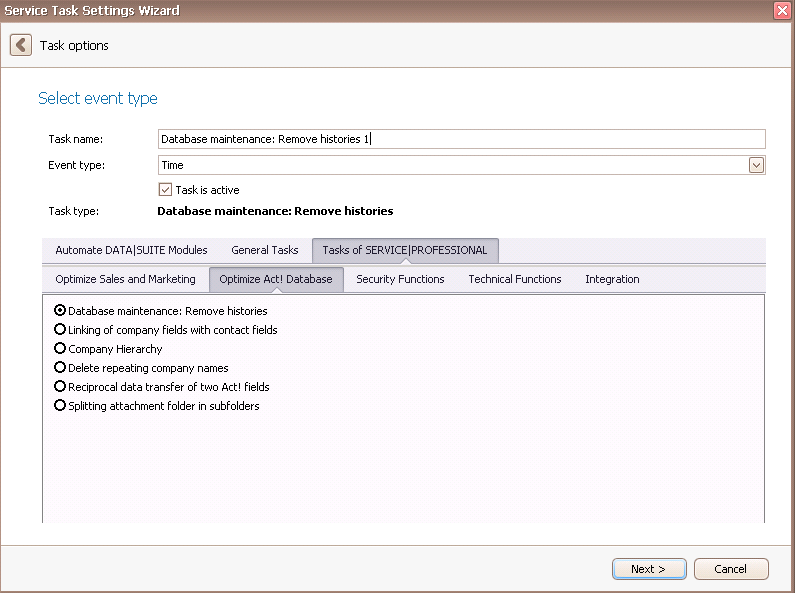
Once you have set the task type Database maintenance: Remove histories you click on Next.
You will get to the schedule options. Continue reading in the Trigger Time / Trigger Task chapter to find out how to proceed.
Click on Next.
The following window will open:

First you choose a database. You can read about how this works in the chapter Connect DATA|SUITE with Act!.
Then you click on Analyze.
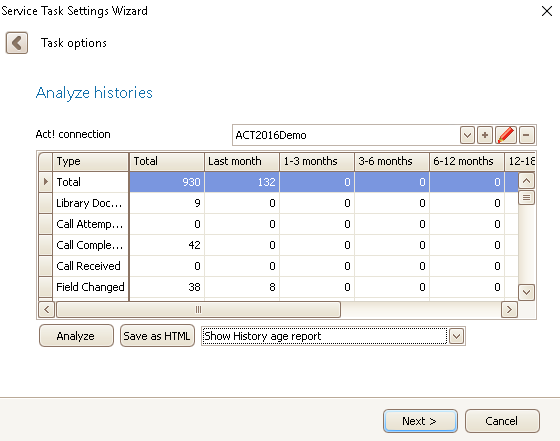
You can sort the histories either by age or by usage. With a click on the Save as HTML button the following window opens:
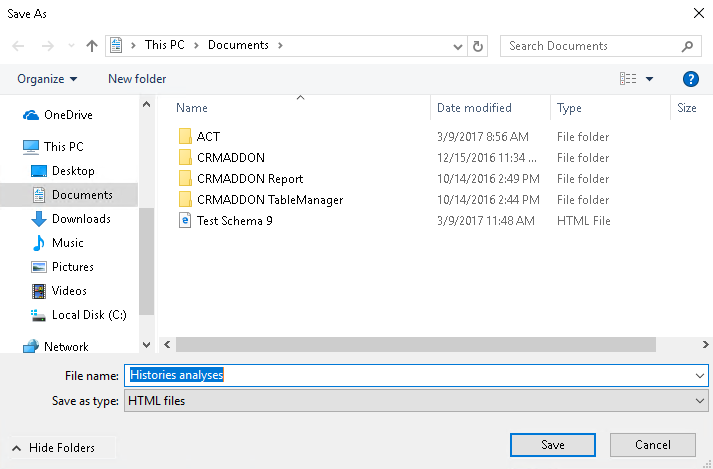
When you click on Save you create an HTML file of this history's report in your file directory.
In the Analyze histories dialog you can click on Next.
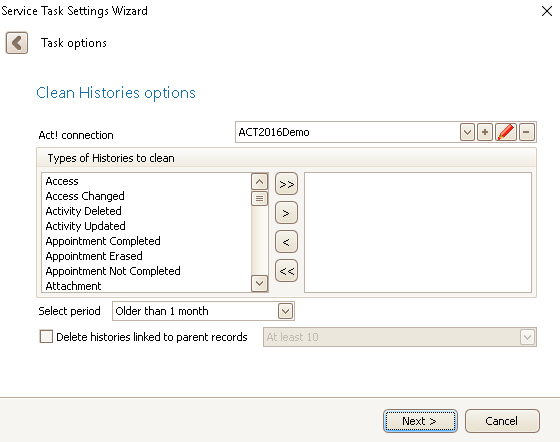
First you choose a database. You can read about how that works in the chapter Connect DATA|SUITE with Act!.
With the buttons > and < you move each history type individually and with the >> and << buttons you move all of them at once.
All history types you move to the right side will be deleted.
Additional to that you have a filter to select a period, that means SERVICE|IT only deletes the histories that are older than what you stated.
Also, there is the possibility to Delete histories linked to at least a defined number of parent records.
Now click on Next.
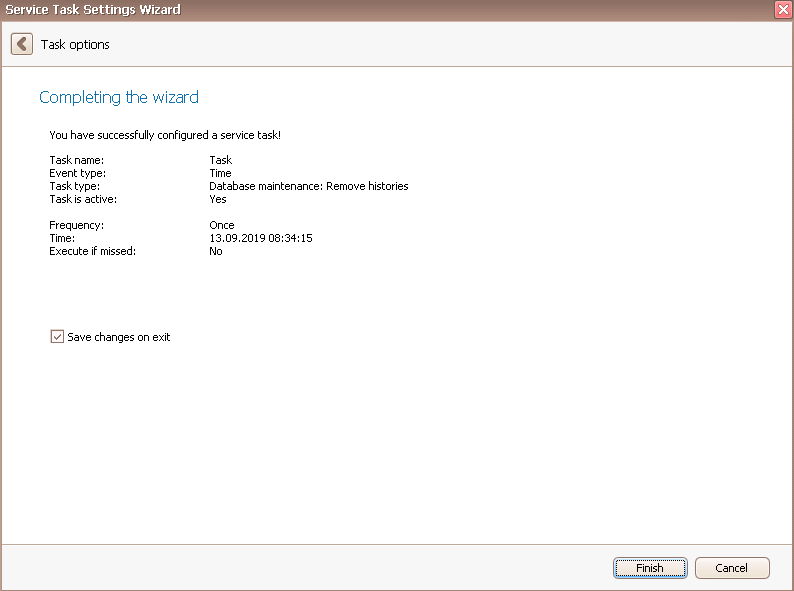
Click on Finish.
You successfully created a task for cleaning your histories!

