1. "ToDo List" tab
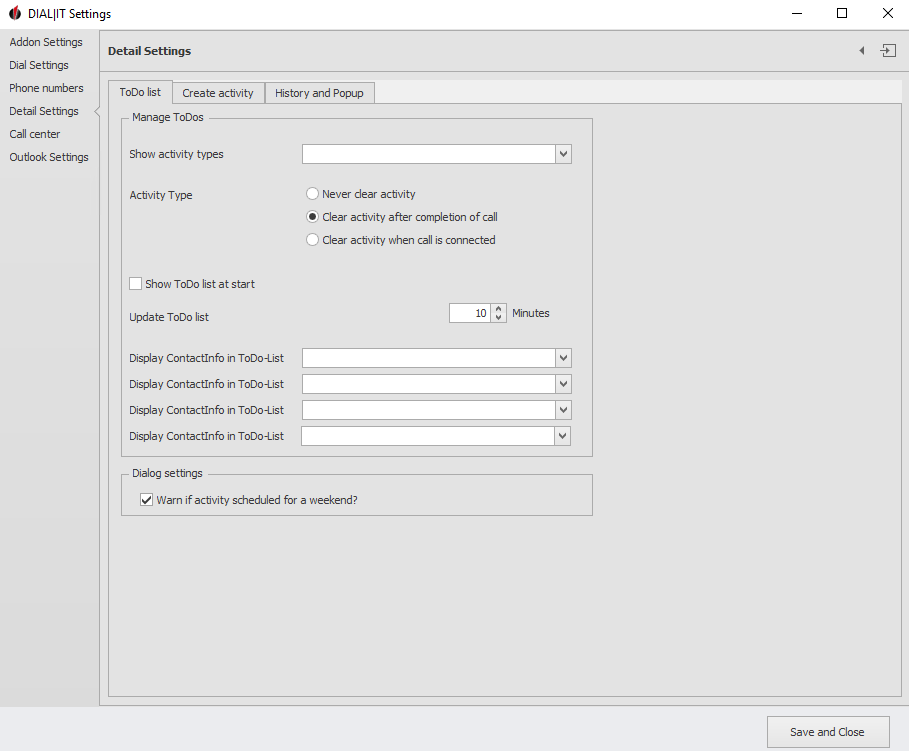
You can select the activity types to be displayed from the drop-down list. Next, specify if the activity should never be removed, if the activity should be removed when the call is finished, or if the activity should be removed when you are connected to the contact. You also have the option to display the ToDo list at startup. Now select every how many minutes the ToDo list should be updated. Furthermore, you can select contact fields to be displayed in the ToDo list. Finally, you can decide whether you want to set a check mark at Note when activity falls on weekend.
2. create activity
a) Settings for activities 1
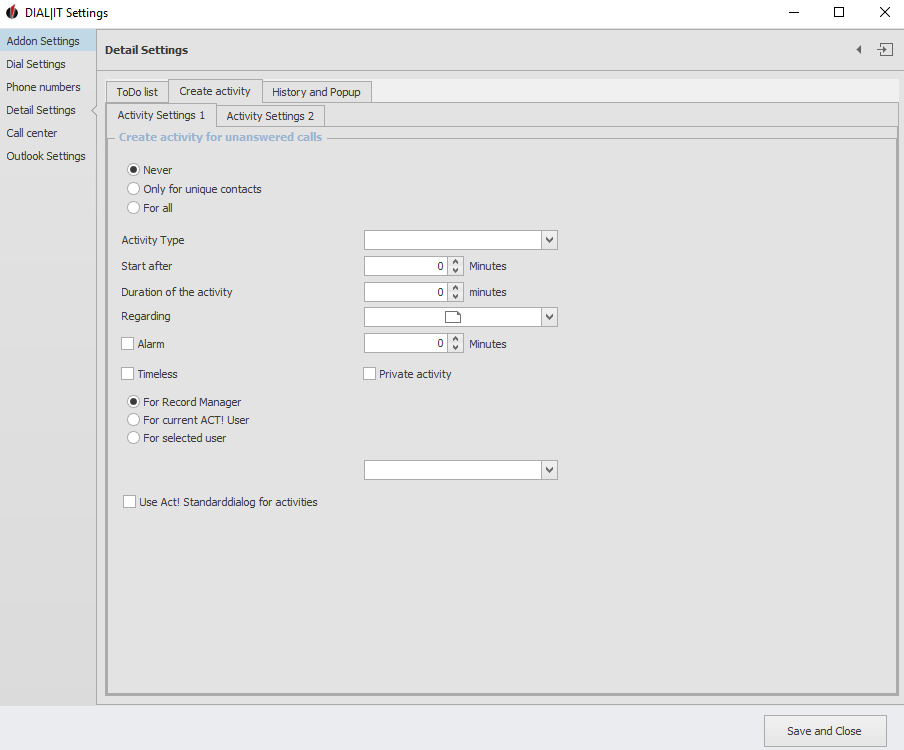
Here you can change the settings for creating an activity for unanswered calls. This creation is done either Never, For all or For unique contacts (i.e. callers uniquely assignable to a contact in Act!).
For this function it is important that the PC is switched on and Act! is open. Otherwise the automatic creation of an activity for unanswered calls will not take place. |
Next, select the activity type, after how many minutes the activity should start, the duration of the activity and the subject.
You also have the option to create an alarm after a certain number of minutes, as well as to mark the activity as timeless or private by placing a check mark.
The creation of the activity is done either for the record administrator, for the logged-in Act! user or for selected users, which you then choose from a drop-down list.
b) Settings for activities 2
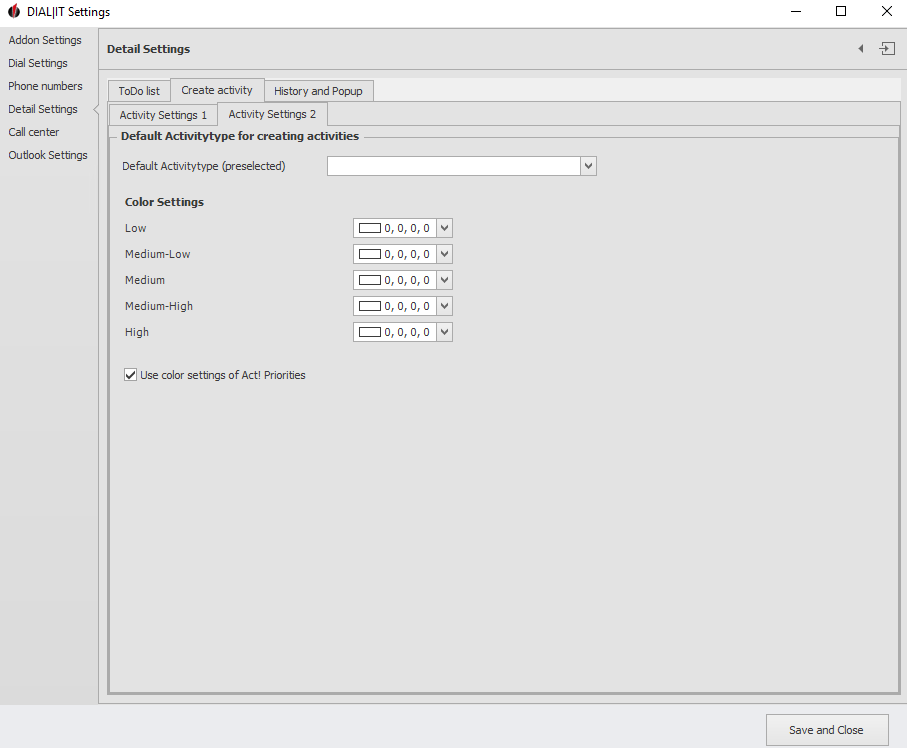
In this tab you can select the default activity type for creating activities. You also have the option to specify the color scheme for each priority (Low, Medium-Low, Medium, Medium-High or High). To do this, open the respective drop-down list:
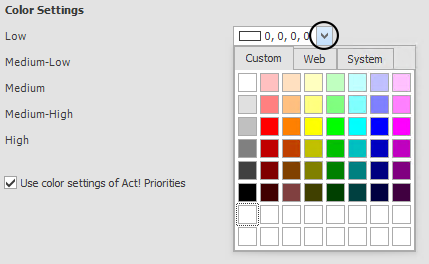
In the upper section you toggle between the individual coloring options (Custom, Web, System), and then in the lower section you select the desired color.
3. history and popup
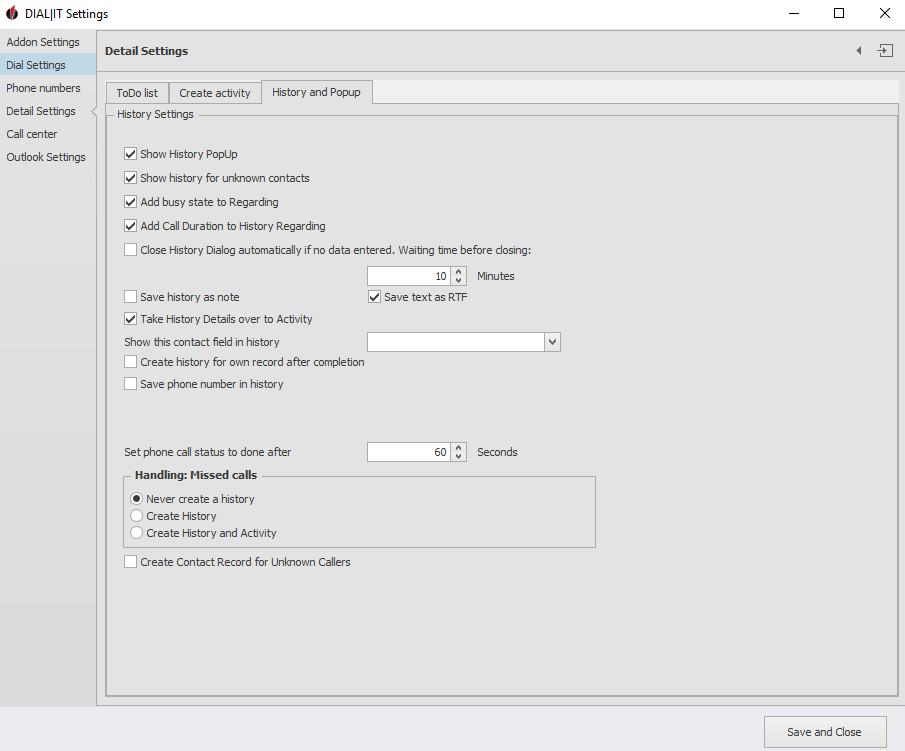
Here you have the option to display a history popup, to display a history also for unknown calls, to include the busy indicator also in the subject or to add the call duration to the history subject.
If you want the log window to close automatically if no entry is made, you still need to specify the waiting time when it will close.
Furthermore, you can also save the history as a note, save the text as RTF or copy the history details into the activity.
It is also possible to display a contact field you have selected in the history, to create a history for your own contact after ending the call, or to save the phone number in the history.
Select after how many seconds the phone status will set to Done.
For missed calls, you can either create no history, create a history, or create a history and an activity.
For unknown contacts, there is a function that automatically opens the "New contact" dialog.

