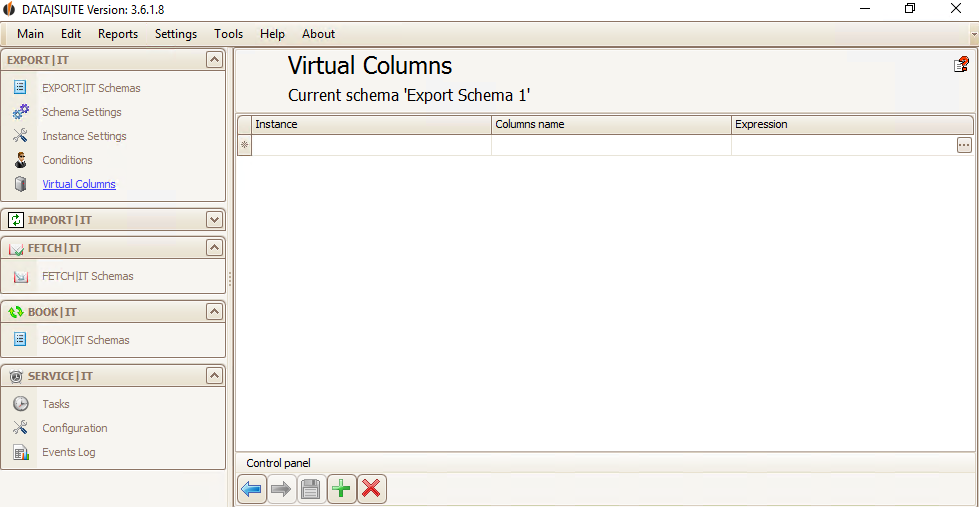
You also have the possibility to export virtual fields (only Ultimate Edition). Click on the green +. The following window appears:
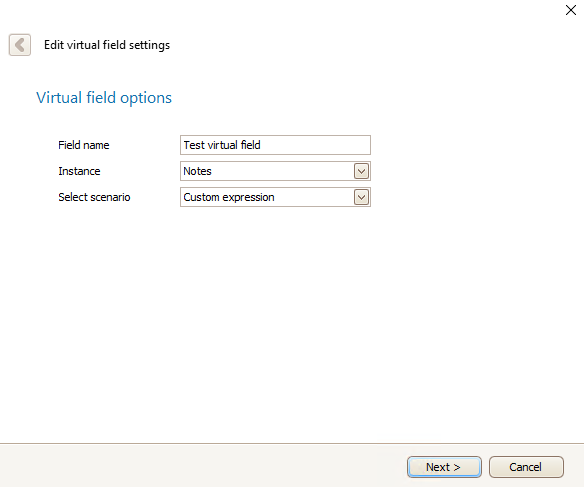
Here you enter a name for your virtual field and choose an instance for that the virtual field should be created as well as a scenario.
There are four options available for the scenario. You can
•The option Constant Value: create a virtual field that always has the same value (e.g. United Kingdom) •The option Merge Fields: create a virtual field out of two or more source fields •The option Translation: create a virtual field where the field name or the field value from the source field will be translated into a specific expression •The option Custom Expression: create a virtual field whose output value is determined by a function/script
Virtual fields can be compiled from the source fields and will then be exported as separate fields.
Now click on Next.
How to create virtual fields with the specific options can be read about in the particular chapters.
If you want to delete a field you select it and then click on the red x.
In the end you save everything. Via EXPORT|IT > EXPORT|IT schemas in the navigation bar you can get to an overview over all of your created schemas. |