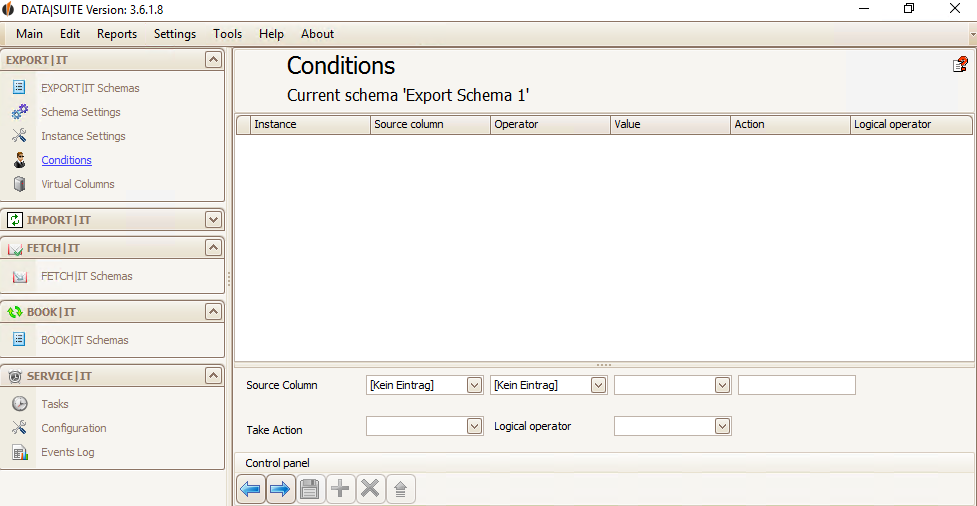
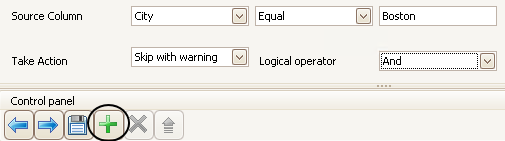
This function (only Ultimate Edition) works similar to the advanced search in Act! with conditions. You can create a condition under which a row won't be exported (e.g. City equals Boston).
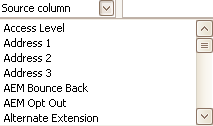
First you open the dropdown list Source field with a click on the arrow button v.
Now you can pick a field for which you create this condition.
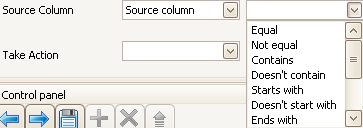
Then you click in the field right next to that one. Here you can choose an Operator (e.g. Equal to or Starts with)
In the last field of the row you enter the value the field should start, end, etc. with.
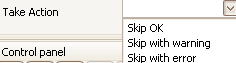
Then under Take Action you choose what happens with a data record when the condition applies. Skip OK: You won't export this data record, instead you skip it. After the export a message will appear saying that this data record wasn't exported and that everything is OK. Skip with warning/error: You can skip the data record. After the export a warning or error appears saying that the data record wasn't exported.
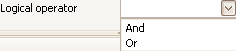
Under Logical Operator you choose if you connect the next condition with an And (data record will be skipped when both conditions apply) or an Or (data record will be skipped when one of the conditions applies).
When you have filled everything in you can add the condition with the green +.
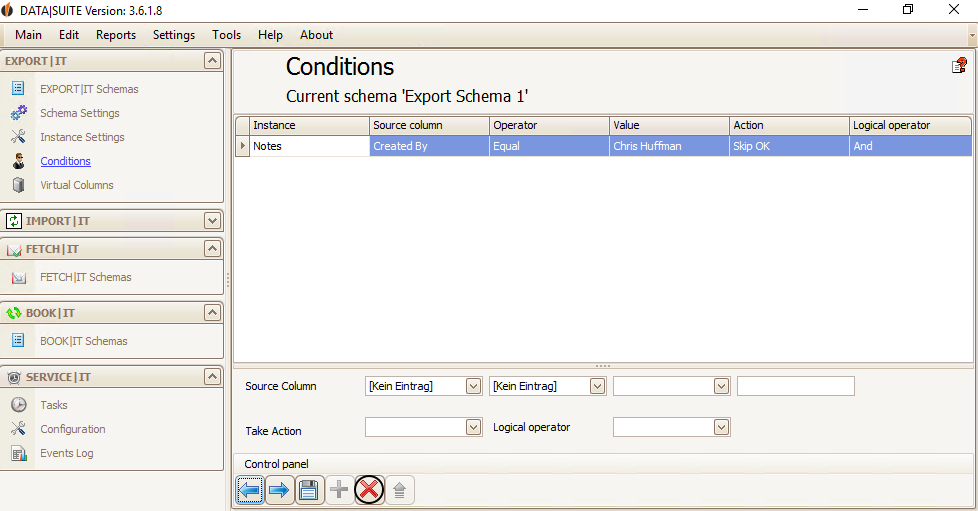
If you have selected a condition you can delete it again with the red X.
To change a condition, double-click on it and the view changes as follows:
You can now change those settings. With the
As soon as everything fits your needs you click on the Save symbol.
The next step is the Virtual Columns/Fields. |
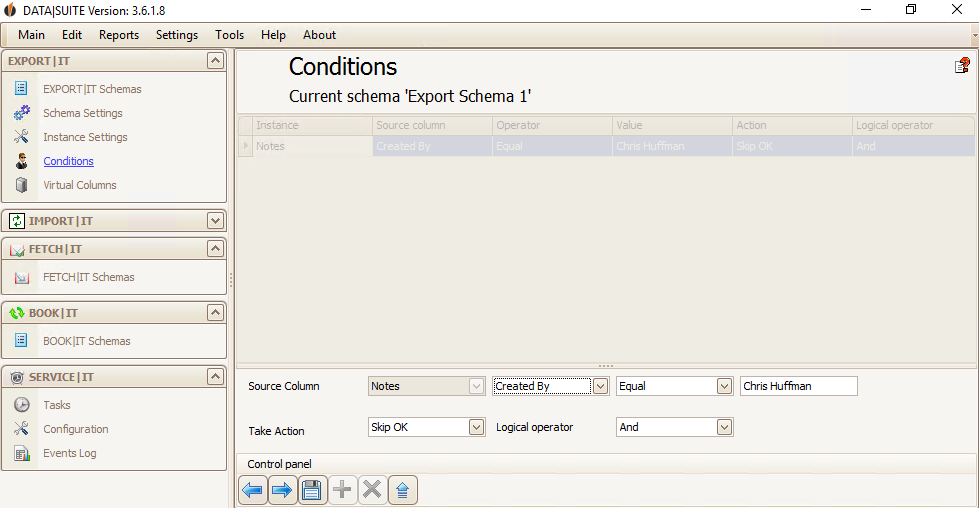
 button you update them.

