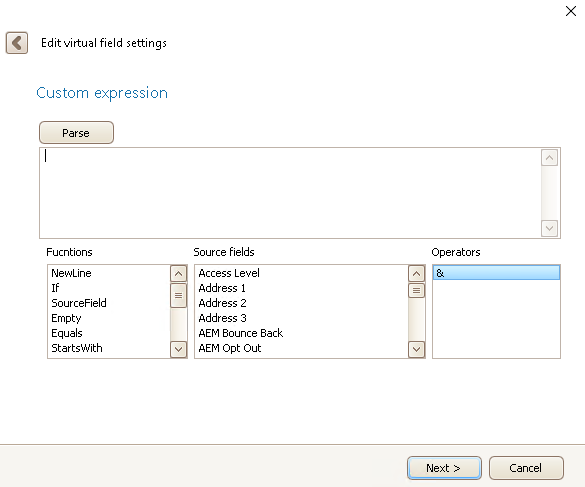
This option offers you Functions that you can fill with the Source fields and connect by using the Operator &. Everything you enter here gets into your virtual field as a value. You have chosen the field name before.
These are the Functions:
•NewLine(): This function creates a line break in your field.
•If(Expression, True_value, False_value): If the chosen Expression is true, the True_value appears (what you have typed in there instead), otherwise the False_value appears. An Expression is another function that has two options as an output.
•SourceField(FieldName): This function delivers the value of the source field you have entered in between the parentheses.
•Empty(Expression): If the Expression you type in between the parentheses is empty, a 0 appears in the virtual field. Otherwise there will be a 1. An Expression is a function that has two options as an output.
•Equals(StringA, StringB, Case Sensitive): In the case that String A is the same as String B then the function delivers a 1, otherwise the output value will be 0. You have the possibility to let the function be case sensitive. For that, type in 1. If you do not want it to be case sensitive then type in 0. You can also enter a function for String A and String B.
•StartsWith(SourceString, SearchedString, Case Sensitive): This function delivers 1 as a value when the Source String starts with the Searched String. Otherwise the output value is 0. If you want this function to be case sensitive enter 1, otherwise enter 0.
•EndsWith(SourceString, SearchedString, Case Sensitive): This function delivers 1 as value when the Source String ends with the Searched String. Otherwise the output value is 0. If you want this function to be case sensitive enter 1, otherwise enter 0. •Contains(SourceString, SearchedString, Case Sensitive): This function delivers 1 as a value when the Source String contains the Searched String. Otherwise the output value is 0. If you want this function to be case sensitive enter 1, otherwise enter 0.
•IndexOf(SourceString, SearchedString, Case Sensitive): This function delivers a positive, integer number as a value when the Source String contains the Searched String. The value of this number depends on the position of the Searched String in the Sourced String (e.g. when the Searched String "flower" appears in the beginning of the Source String "Flower Street" the value will be 0). If the Source String does not contain the Searched String the output value will be -1. If you want this function to be case sensitive enter 1, otherwise enter 0.
•SubString(SourceString, StartIndex, Length): This function delivers a Sub String that is part of the Source String. As a Start Index you enter a number for the starting position of the Sub String in the Source String (0 for first letter). For Length you type in how many letters will be displayed.
•StrLength(SourceString): This function has the Length of a Source String as the output value.
•StrReplace(SourceString, SearchedString, CaseSensitive, ReplaceString): This function replaces the Searched String in the Source String with the Replace String. If you want this function to be case sensitive enter 1, otherwise enter 0.
•GetTextFromRTF(SourceRTF): This function delivers a plain text from a rich text format (RTF). Instead of SourceRTF you type in the name of a source field that contains rich text format.
The words in parentheses, e.g. SourceString, are always replaced by something. Field names and fixed string are to be enclosed in quotation marks " ". You can state that the output of a function is bigger than (>), smaller than (<) or equal to (=) a set value, like 0 for example.
We have created some examples for you in the chapter Examples for Custom Expression.
With a click on the button Parse the program checks if the functions contain any mistakes. This is helpful when you have a very long chain of functions.
If you have set everything according to your wishes, you can click on Next.
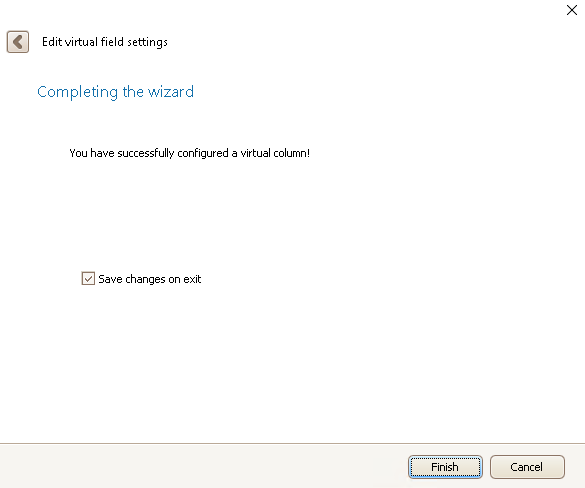
In the end you click on Finish. You have created a virtual field! |