For users that have written their own program SERVICE|IT offers the possibility to run it regularly.
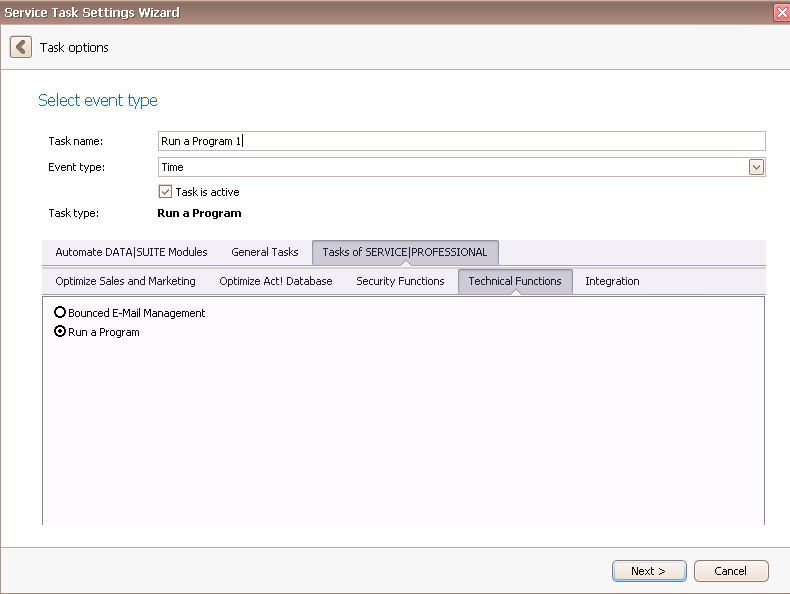
Once you have set the task type Run program you click on Next.
You will get to the schedule options. Continue reading in the Trigger Time / Trigger Task chapter to find out how to proceed.
Click on Next.
The following window will open:
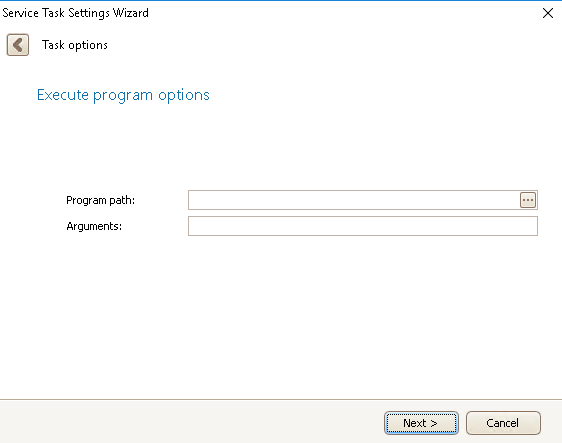
Click on the three dots ... behind Program Path to get to this window:

Here you choose the program that SERVICE|IT should perform.
Now click on Open.
SERVICE|IT is performed as a windows service in the background, that means that the computer only needs to be turned on but no user has to be logged in. The program you choose can only run as a windows service in the background as well. Please consider that when picking a program.
In the program options you enter the particular arguments. Those are optional.
Click on Next.

In the end you click on Finish.
You created a task for running a program!

