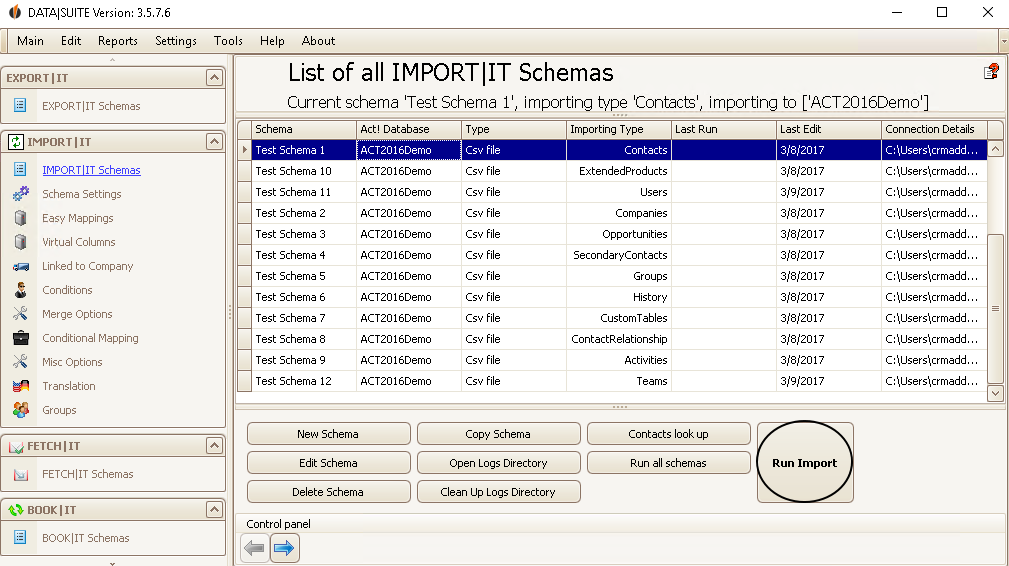
Double-click on the schema you want to import and then click on Run import. Alternatively you can also click on Main > Run selected schema.
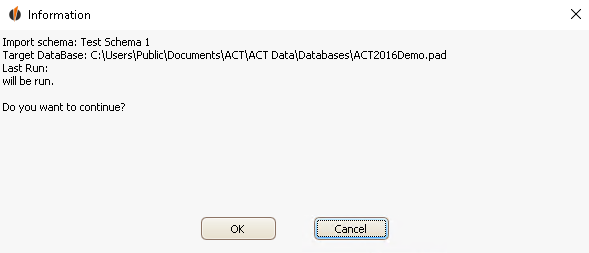
The following window appears:
Click on OK.
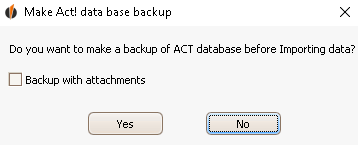
If you want to make a backup of the database you are importing to click on Yes. You can also backup with attachments.
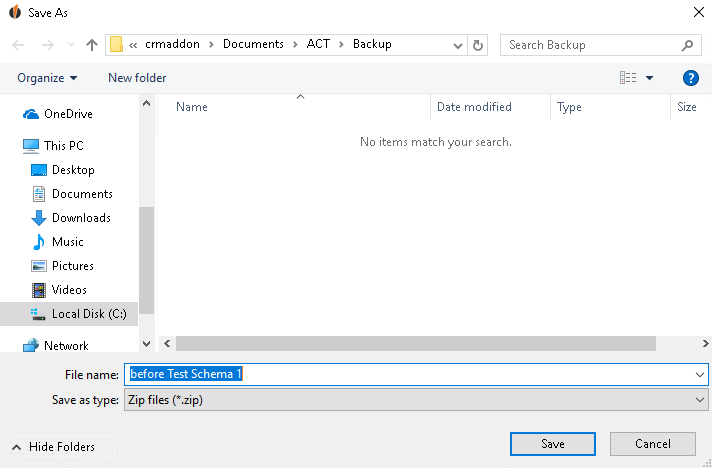
Enter a descriptive name for your backup and then click on Save.
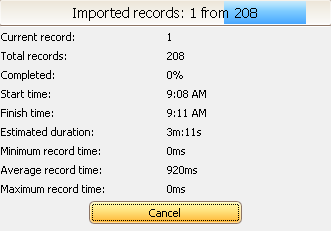
This loading screen appears and informs you about the status of the backup.
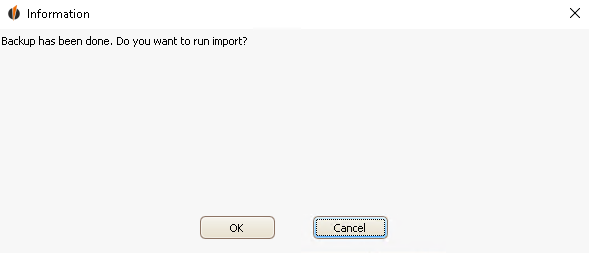
Click on OK to start the import.
If you don't want to create a backup click on No in the previous window.
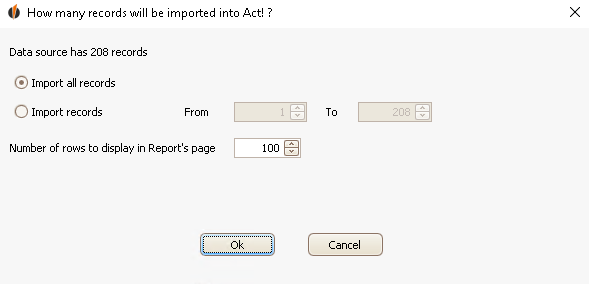
No matter if you have created a backup or not, this window will appear next:
Here you choose how many data records should be imported from the source and how long the report about the import will be.
Now click on OK.
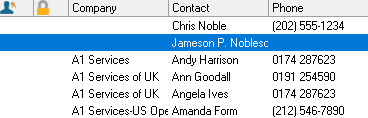
As soon as the import is finished the window will disappear. You can now check in your Act! database if everything was imported correctly.
In the report directory you are able to see if data records were skipped during the import and if there were any mistakes. |