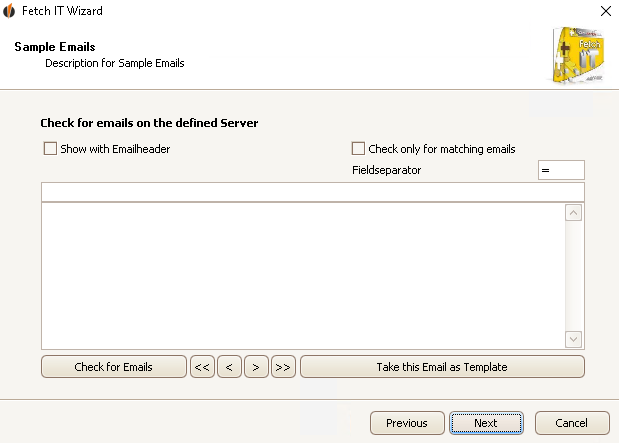
Here you choose an e-mail from your mailbox as a template. You can import the separate sections of the e-mail in Act!.
The e-mail you choose as a template should be an online inquiry from your website since the layout of the messages will be the same and that way the program will know that those e-mails should be processed.
If you want the e-mail header to be displayed you have to tick Show with e-mail header. You can also only check for matching e-mails (see FETCH|IT Analyse Settings). Also, choose a field separator. In front of this separator will be the field name and behind it the field value (see picture below).
Now click on Check for e-mails.
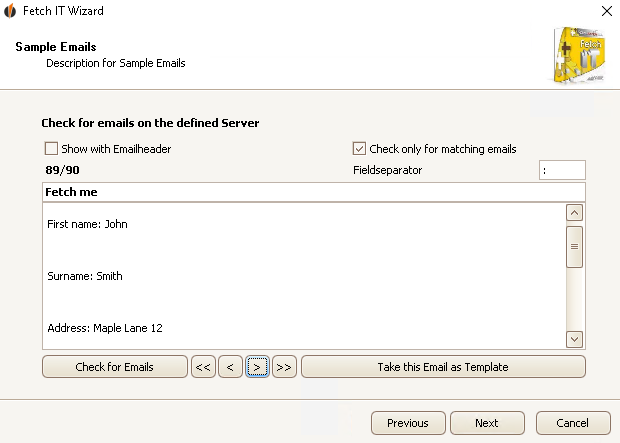
With the buttons < and > you switch between the e-mails. The button << gets you back to the oldest e-mail, the button >> to the latest one. If you want to take the e-mail that is currently displayed as a template then you click on Take this e-mail as template.
The last step is the Definition of the fields.

