Here you determine how the products that belong to the opportunities will be imported.
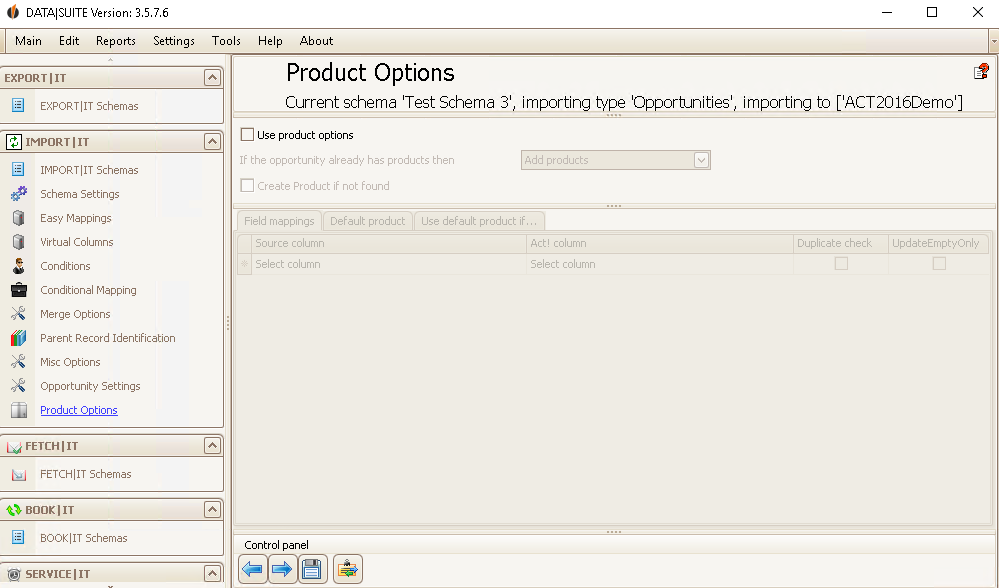
If you have ticked the option Use product options you can use this setting.
If the opportunity already has a product you can add the products you want to import to the existing ones or delete the existing ones. There is also the possibility not to import the product in this case.
In the case that the opportunity doesn't have a product yet you can create one.
Field Mappings tab
When the product fields also exist in the file you want to import you can assign them to the procuct fields in Act!. With the automapping symbol next to the Save symbol you can automatically assign the fields. You can also decide on whether to make a duplicate check for every allocation and on whether to only update empty fields or not.
To delete a row, select it and click on Delete on your keyboard.
Default product tab
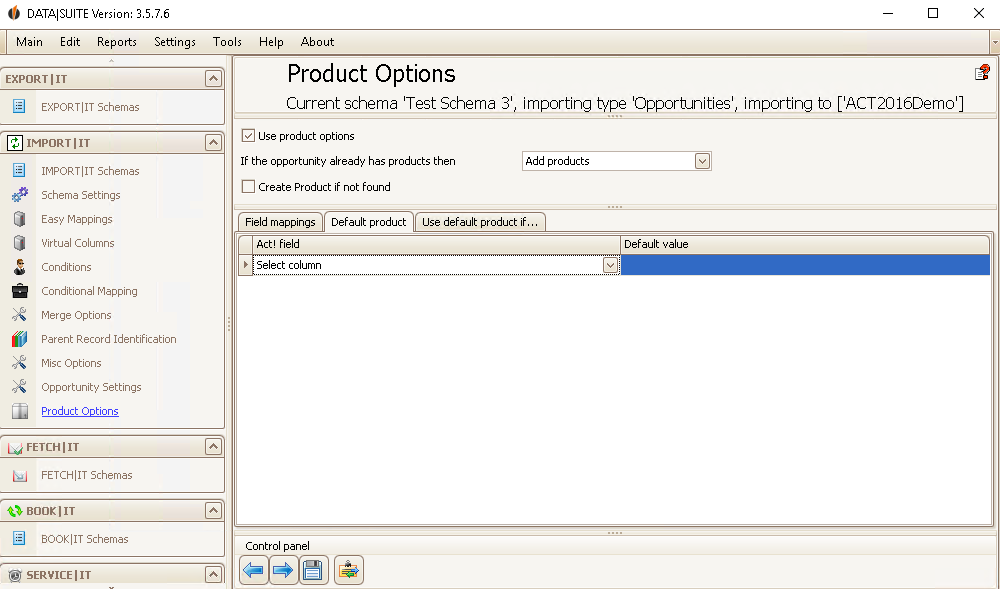
Here you can create a default product that will be added to every opportunity you import. Such a default product could be a laptop, for example. Enter specific values for as many Act! fields as you wish for this default product.
To delete a row, select it and press Delete on your keyboard.
The automapping symbol is only useful for the Field mappings.
Use default product if...
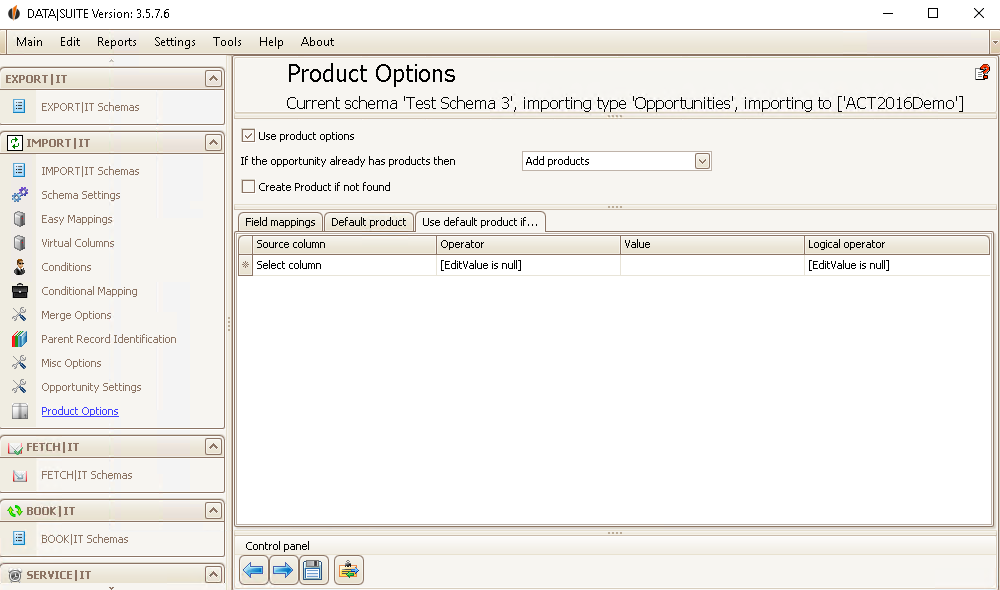
These are the conditions under which the Default product is used. If a specific Source column contains/starts with/etc. (=Operator) a value then the Default product will be used. You can create several conditions and link them with a logical function (and/or).
To delete a row, select it and press Delete on your keyboard.
The automapping symbol is only useful for the Field mappings.
In the end you click on the Save symbol.

