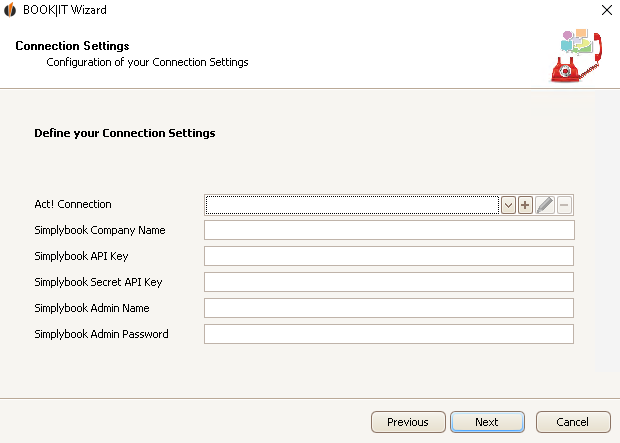
First you choose an Act! connection. For that you click on the  symbol and choose the desired database from the list. If you have not created a connection yet, click on the
  symbol. You can find out how to create a new connection in the chapter Connect DATA|SUITE with Act!.
Next you enter your SimplyBook Company Name, as well as your SimplyBook Admin Name and the SimplyBook Admin password that you receive after your registration. If you have enabled API for SimplyBook you can also enter the API Key and/or the Secret API Key.
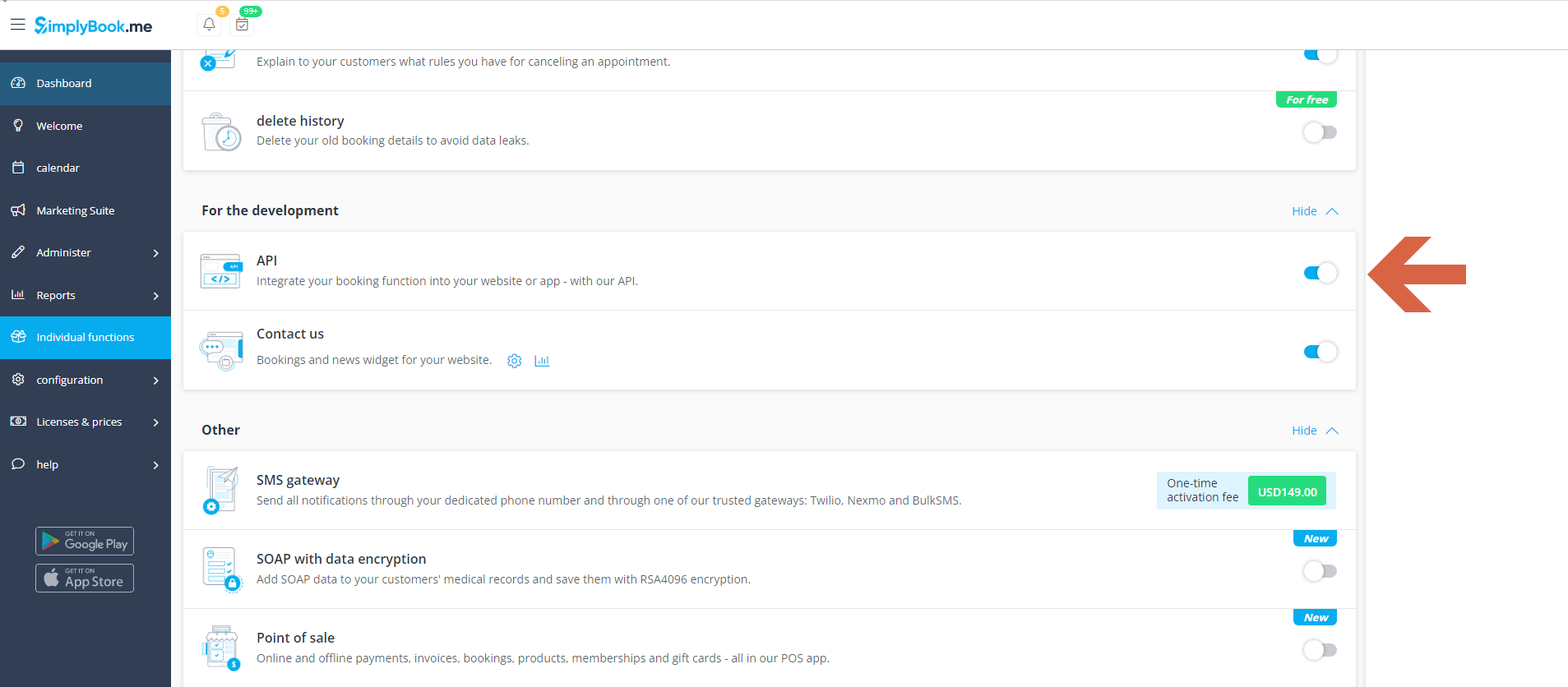
To get your API key and/or your Secret API key, you need to enable the API feature in Simplybook.
In the end you click on Next. You will get to the Type mapping settings.

