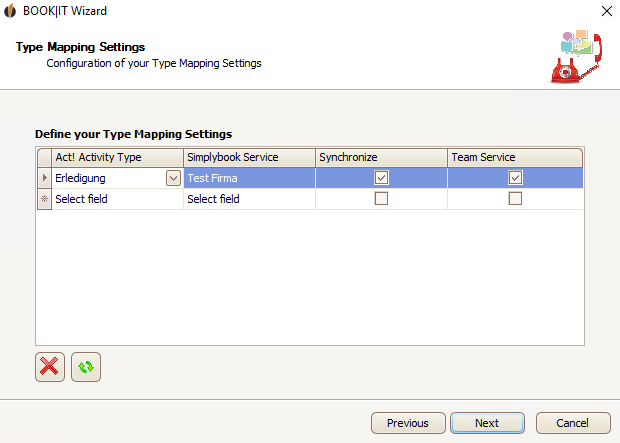
Here you can assign your Act! activities to the SimplyBook Services and synchronise them. That way activities in Act! will be automatically created when services are booked via SimplyBook.
First you click on the field below Act! activities and choose a type from the list. Next you click on the field below SimplyBook Service and also decide on a type. In the end you tick Synchronize. Thus you can assign as many activities as you want.
If you want to use the team function for an activity you can tick Team Service.
With the team setting you can assign several users (i.e. your support employees) in Act! to a service provider (i.e. support) and then choose a team leader who receives all bookings during the synchronisation from SimplyBook.it to Act!. The team leader is then able to manually assign those to the team members. This is useful when it is not relevant for your customers who of your service providers performs the service.
You update the dropdown lists with a click on the
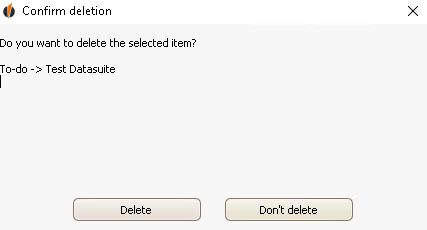
Click on Delete. In the end you click on Next. You will get to the User mapping settings. |