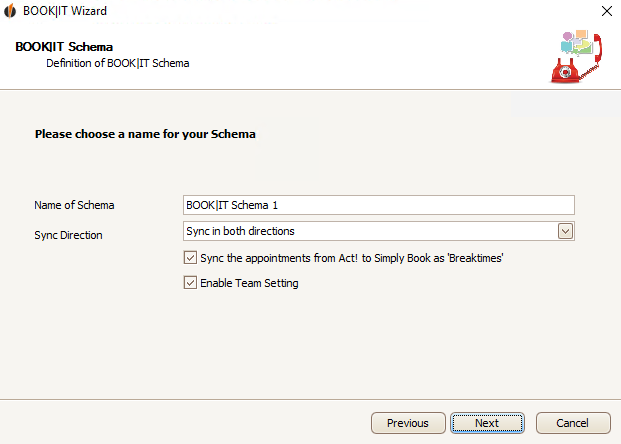
Enter a name for your schema and choose a Sync direction.
If you tick Sync the appointments from Act! to Simply Book as 'Breaktimes', dates from Act! will be added to SimplyBook.it as breaks.
You can also enable the Team Setting.
With the team setting you can assign several users (i.e. your support employees) in Act! to a service provider (i.e. support) and then choose a team leader who receives all bookings during the synchronisation from SimplyBook.it to Act!. The team leader is then able to manually assign those to the team members. This is useful when it is not relevant for your customers who of your service providers performs the service.
Then click on Next. Now you get to the Connection settings.

