Synchronize your users and contacts from SimplyBook with the ones from Act! and automatically create activities from bookings.
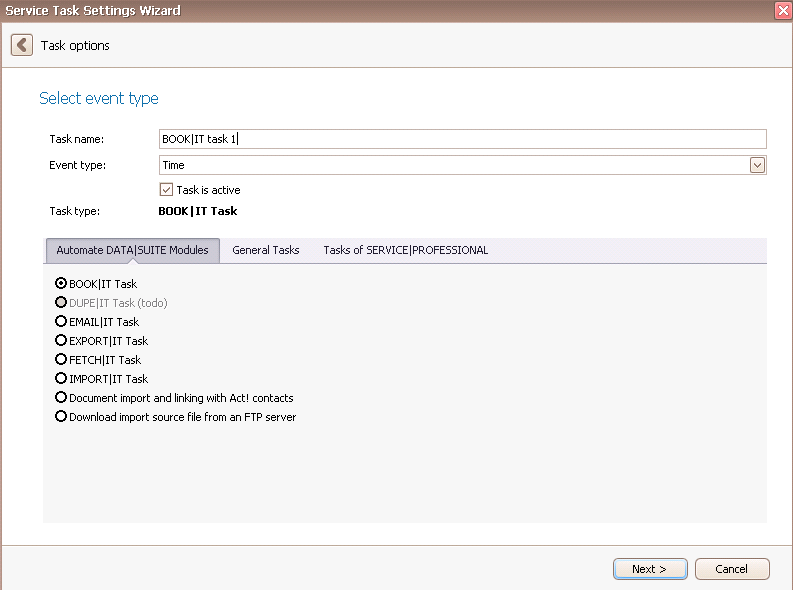
Once you have set the task type BOOK|IT task you click on Next.
You will get to the schedule options. Continue reading in the Trigger Time / Trigger Task chapter to find out how to proceed.
Click on Next.
The following window will open:
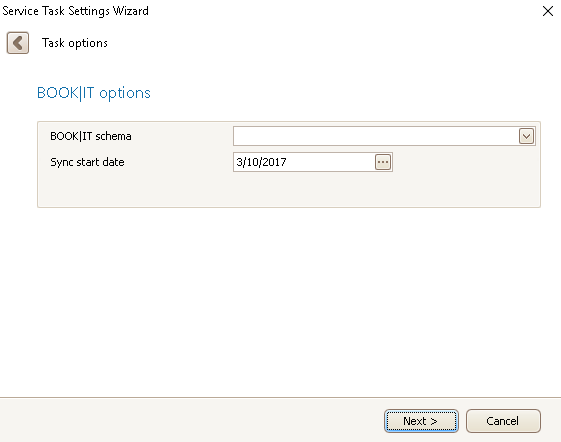
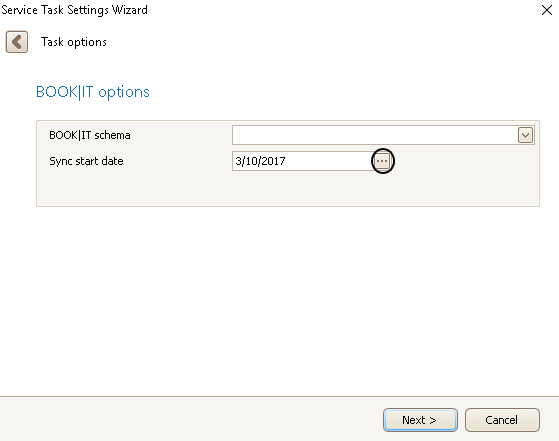
Click on the arrow button  in order to open the dropdown list. Then you choose a BOOK|IT Schema. Next you click on the three dots behind Sync start date:
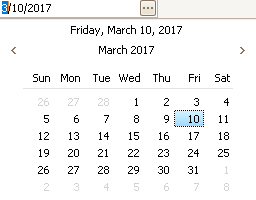
A calendar will open where you can pick the start date for the synchronization:
In the end you click on Next.
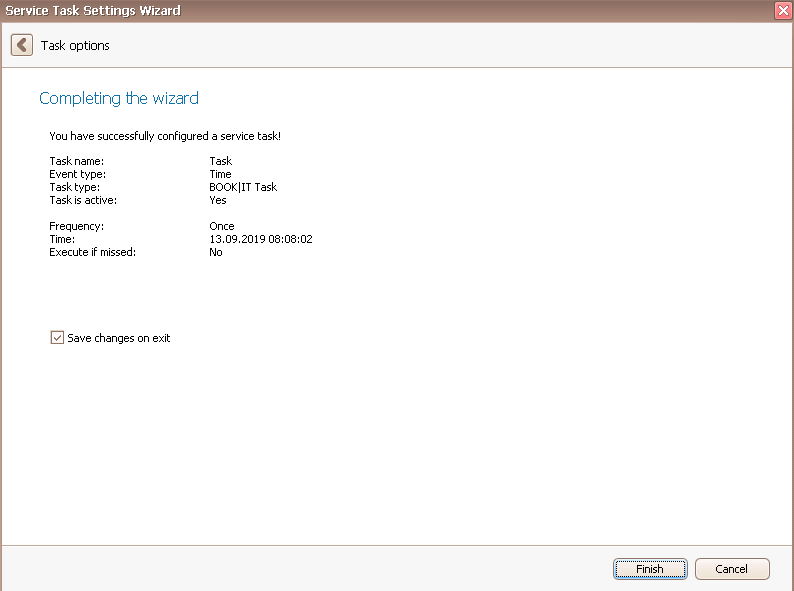
You created a BOOK|IT task successfully. Click on Finish.

