|
Please create a separate ticket for every topic. Tickets with requests containing several topics cannot be processed. |

Create a ticket online
Please log in to the ticket system first.

Enter the email address and password you used to register in the ticket system. Click on "Log on".
You will now get to this window:

Click on "New Request".
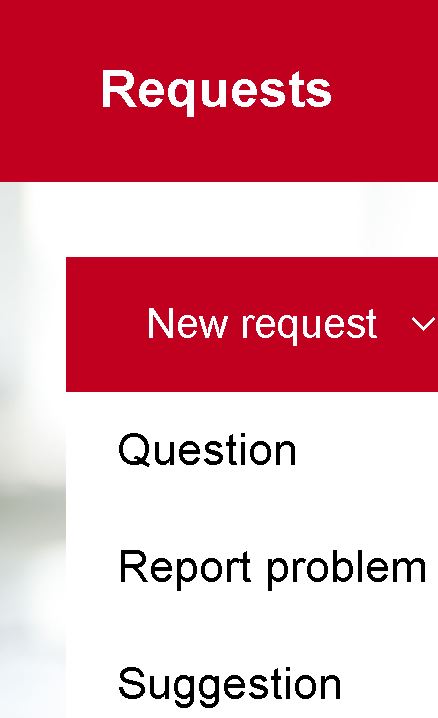
Here you have three different types of tickets:
1. Ask a question: You can send us questions about your CRM system and marketing automation here. If it is possible to answer the question via a link to an existing document, this service is free of charge for you.
2. Report a problem: If you find that the software is not working correctly, report your problem in detail. Please add screenshots. We will take care of your request as soon as possible.
3. Propose an idea: We are always open to your suggestions and suggestions for improvement. We look forward to your idea.
This window then opens: (The window shows "Report a problem" - "Ask a question" and "Propose ideas" have a similar structure.)

1. Enter your keyword / subject.
2. Make your request as detailed as possible.
3. Describe your approach (only for "Report a problem").
4. You can also attach files, e. B. Screenshots that document your problem (only for "Report a problem" and "Propose an idea").
5. Choose your priority (only for "Report a problem").
6. To send your ticket, click "Send".
After you have send your ticket, this window opens:

Here you have the options:
Submit a comment (if you would like to send us further important information)
Upload file (e.g. screenshots for illustration)
Complete the request (in case the problem has been resolved in the meantime)
After creating the ticket, you will receive a confirmation email.
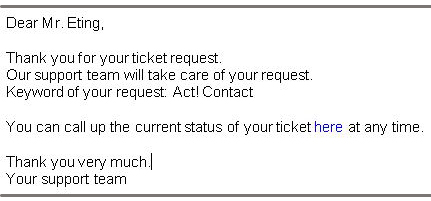
When your ticket has been processed, you will also receive an email.
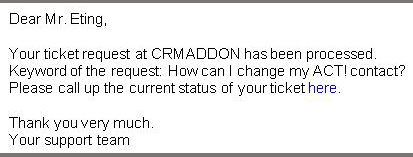
To view the technician's answer, click the link in the email.
You have to log in again to get your ticket.

After you have logged in, this window will open.
You have the following possiblities:
1. You can reopen your request if necessary.
2. View the history of the request.
3. The details of the request.
Autoclose
If you need to give us feedback and it is not received within 3 days, you will receive a reminder in the form of the email below.
After 4 days the ticket will be closed automatically.
However, you can still track the processing history by following these steps.
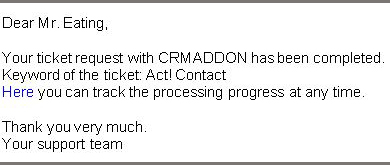
To track the progress of the processing, click on the link in the e-mail; the registration window will open.
Log in.
After you have logged in, you can follow the respective points as with the "answer".
|
Please take into account the tips about what is necessary information for creating a ticket. |

