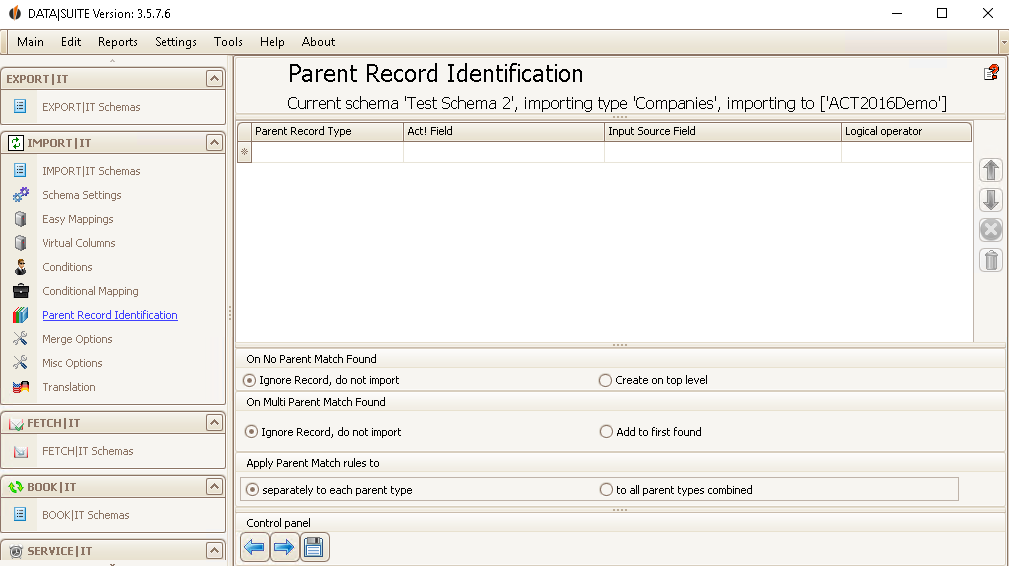
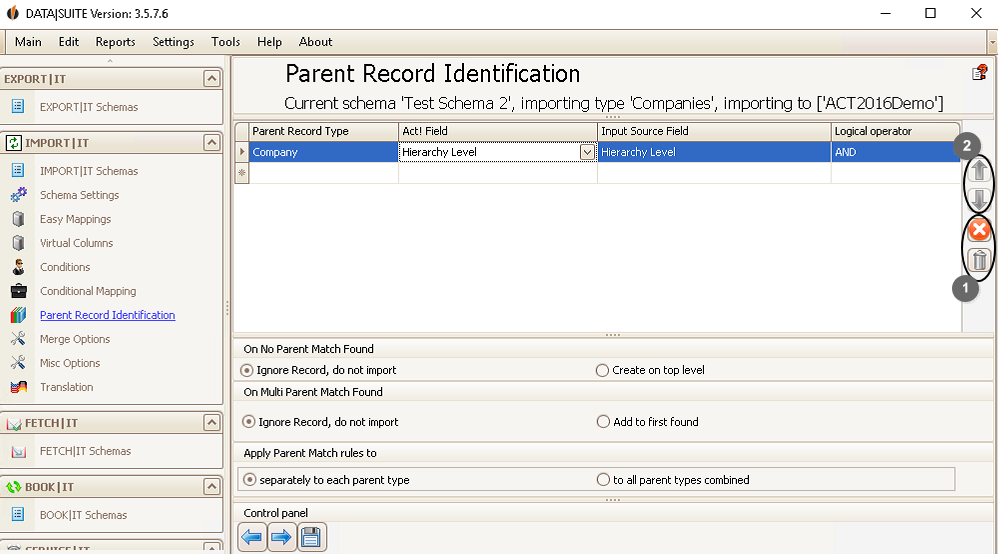
Here you can set a subsidiary company as a child entity when importing it. The parent record is always a parent company in this case. Depending on where you have the note in Act! that a particular company has a subsidiary company (e.g. the field Subsidiary Company) and depending on where you have the note in the source file that this record has a parent company (e.g. the field Parent Company), you set this here.
When no parent record could be found you can either import the data record on top level (the company doesn't have a parent company then) or you can not import the record. If several parent records were found you can either ignore the record and do not import it or you can add it to the first parent record that was found. You can either apply the settings you have previously configured to every parent record separately or to all of the parent records combined.
You can either (1) delete the selected setting with the red X or delete all of the settings with the trash bin icon. With the arrow buttons (2) you can move the criteria around.
Click on the Save symbol once you are done.
This function is also available for Opportunities:
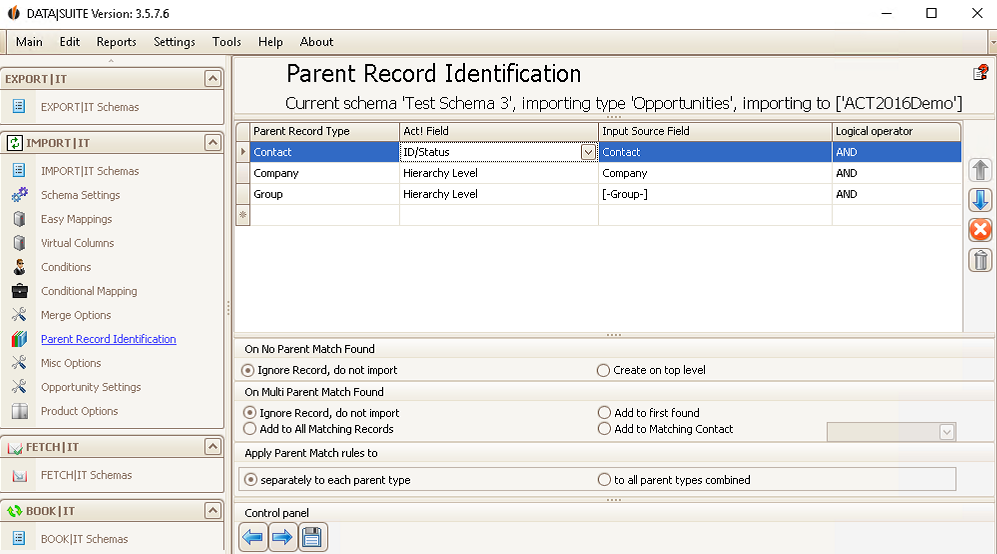
Here you can also choose contacts and groups as parent records. Since opportunities are a child entity that always belong to a group, contact or company in Act! you have to state the two fields here with which IMPORT|IT will know what parent record the opportunities should be imported to.
There are two new options for when several parent records could be found. You can either add the child entities to all the matching records or to matching contacts you choose. |