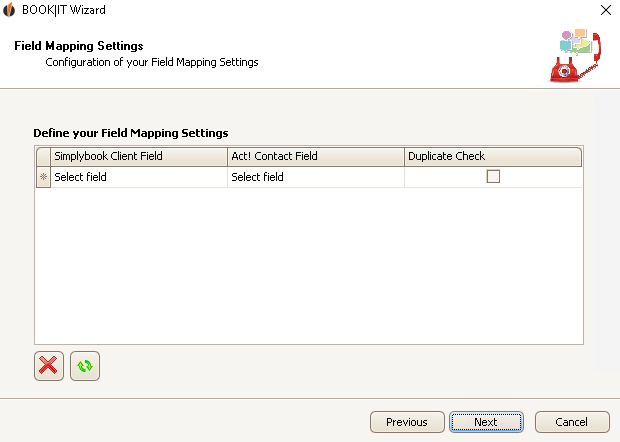
Here you can assign the contact fields from Act! to the client fields in SimplyBook.
Click on the field below SimplyBook Client Field and choose the desired field. After that you click on the field below Act! Contact Field and decide on a field. Finally you tick Duplicate Check.
That way you can create several allocations. If you want to delete a row you can select that row and click on the  symbol. You will be asked if you really want to delete it:
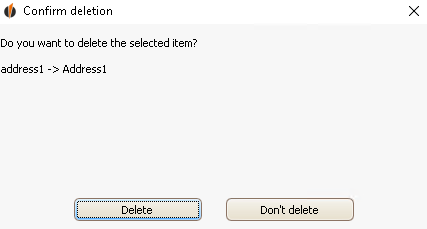
Click on Delete.
In order to update the dropdown lists click on  .
.
In the end you click on Next. You will get to this window:
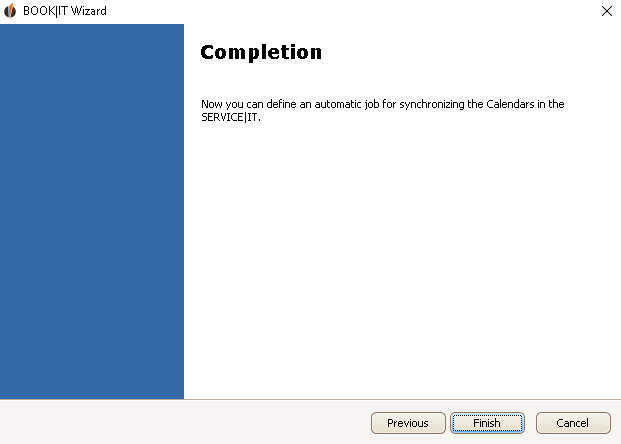
You successfully created a BOOK|IT schema. Finally you click on Finish.

