The following window will appear:
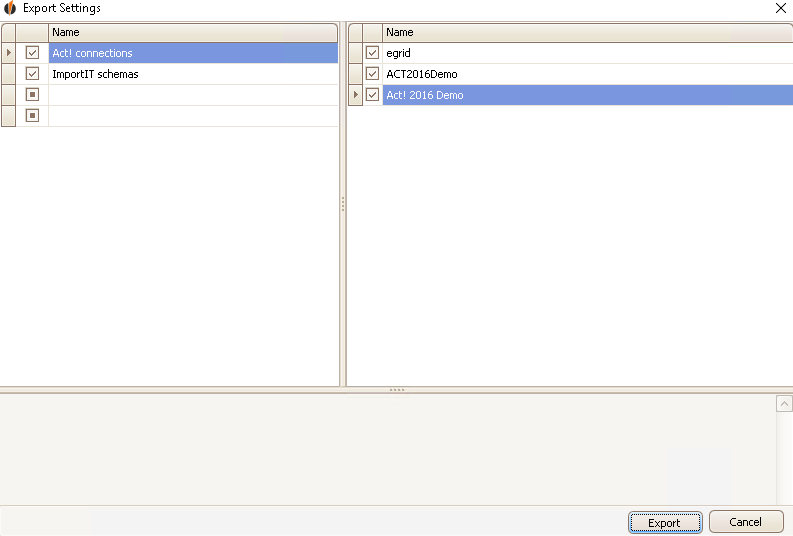
All of your schemas and Act! database connections are listed here. Select the settings you want to export and click on the Export button.
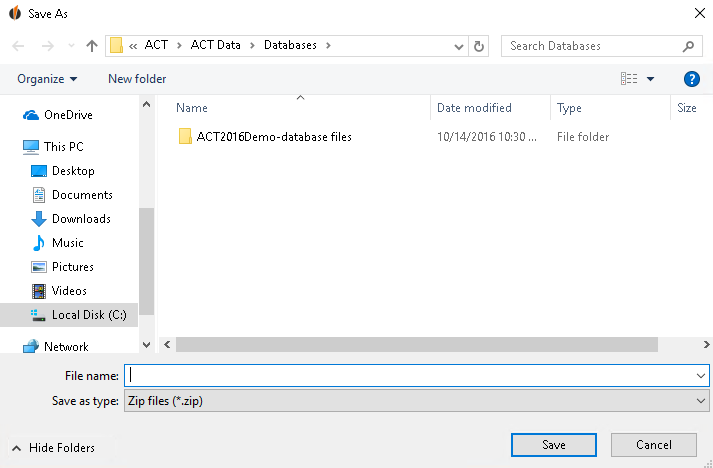
A window opens where you can choose the location for your settings. Give the export a descriptive name so that you can find it again later more easily. Then you click on Save. Two windows will appear:
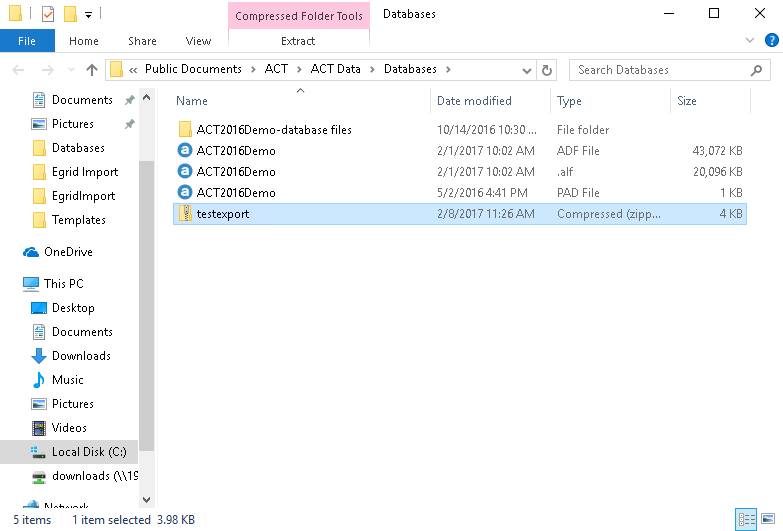
Here you can see where the file is placed.
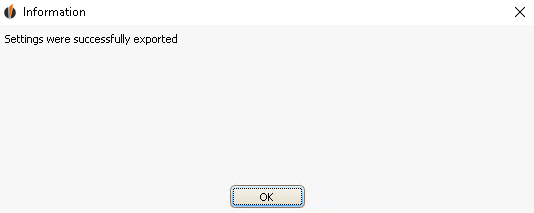
Here you are told that the export was run successfully. Click on OK.

