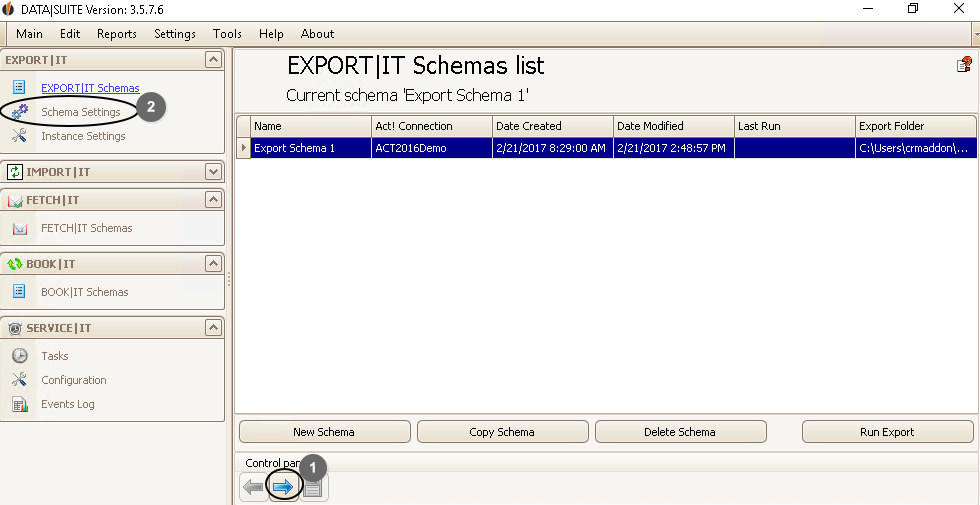
If you have created a schema you might want to edit it afterwards if it doesn't fit your needs anymore. Go to the list of EXPORT|IT schemas and double click on the desired schema. You will then have two options. Click...
1. ...on the right arrow.
2. ...on Schema settings in the navigation bar.
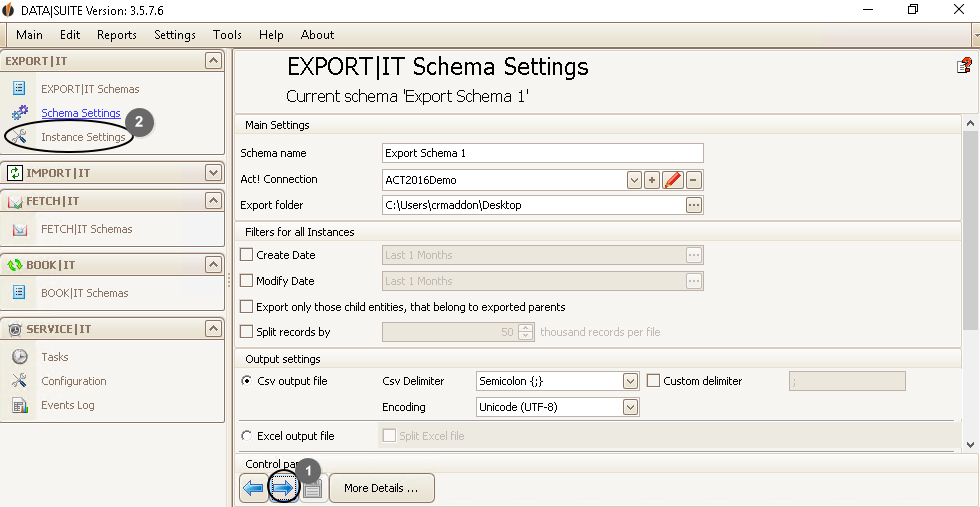
You get to this window:
Alternatively you can click on Edit > Edit Schema.
To keep editing the schema click on the right arrow (1) or on Instance settings in the navigation bar (2). You should be here now:
Here you can edit the rest of the properties of the schema.
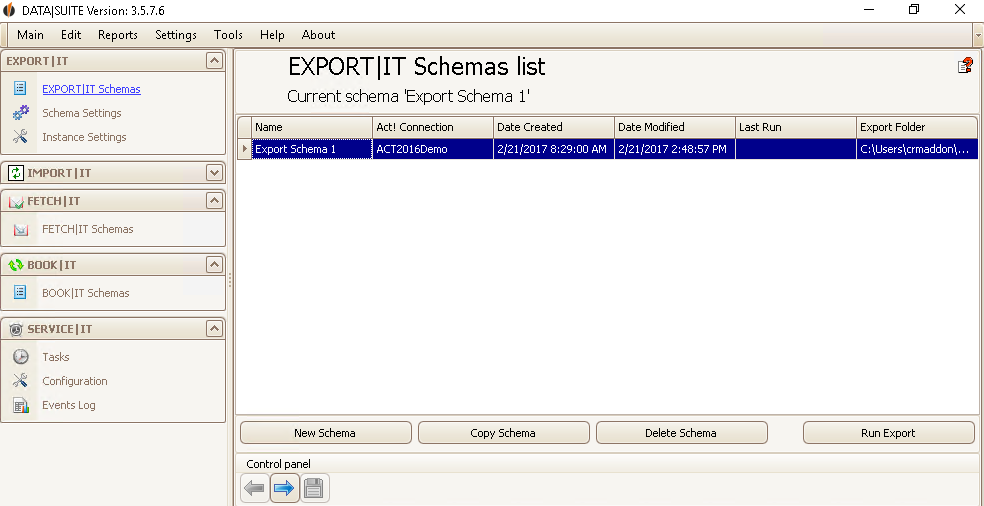
If you want to copy a schema go to the list of EXPORT|IT Schemas (EXPORT|IT Schemas in the Navigation bar).Then select the desired schema and click on Copy Schema in the lower bar:
Alternatively click on Edit > Copy Schema.
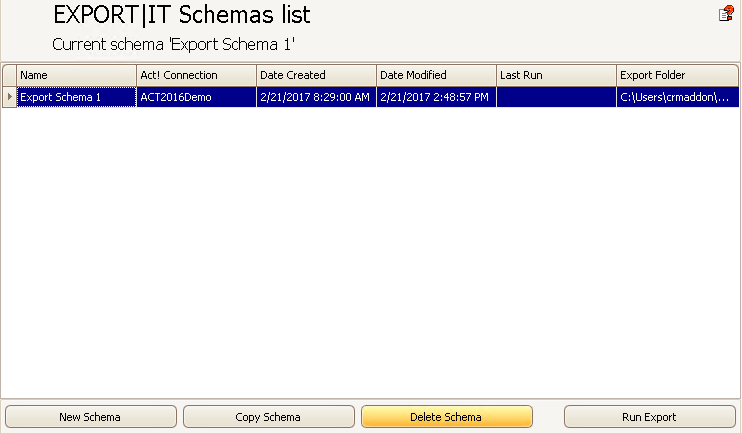
If you want to delete a schema go to the list of all EXPORT|IT schemas (EXPORT|IT schemas in the navigation bar). Then select a schema and click on Delete Schema in the lower bar.
Alternatively click on Edit > Delete Schema.
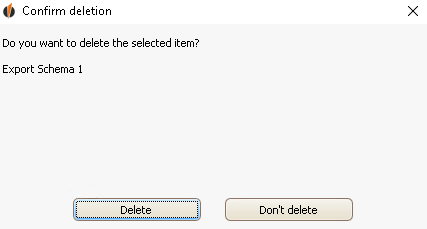
A window appears that asks you if you really want to delete the selected item. Click on Delete.
You have deleted the schema now!

